Posted on — Leave a comment

Do You Actually Need a Smart Home Hub? Zigbee, Matter and Bluetooth Gateways Explained

Every Smart bulb advertises “no hub required”, which has left a lot of people believing hubs are obsolete. They are not — they just moved. A hub was never about connecting bulbs; it was about connecting the devices that cannot reach your router on their own, and there are more of those now, not fewer.

The practical rule: if everything you own is WiFi, you do not need a hub today. The moment you add battery sensors, you do.

Why a battery sensor cannot just use WiFi

A door contact or a motion detector runs for a year on a coin cell. WiFi’s handshake and transmit power would drain that cell in weeks, and a sensor that needs charging is a sensor nobody uses. Zigbee and Thread exist to be cheap to transmit and cheap to sleep, which is why every serious sensor uses them — including our PIR motion sensor and the temperature and humidity sensor. Those devices need something in the house that speaks Zigbee and can reach your router, and that thing is the hub.

Three different things get sold as a “hub”

Type What it really does Worth it when
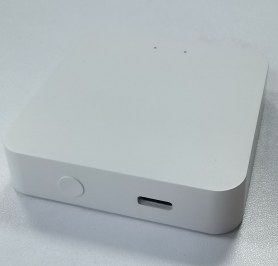
Zigbee gateway Runs a Zigbee mesh, keeps devices reachable, executes automations locally You own sensors, or more than a handful of switches
Matter / Thread hub Same job, newer standard, works across brands You are starting fresh and want to avoid lock-in
Bluetooth gateway Forwards Bluetooth devices to the cloud so you can control them remotely You have Bluetooth locks or sensors and want them visible when away

The Bluetooth one deserves a warning, because it is the most misunderstood. A Bluetooth gateway does not turn a Bluetooth lock into a Zigbee device and does not run automations on its own — it is a bridge so your phone’s absence does not mean losing the device. Useful, but not the same purchase as a Zigbee hub. If you want both in one box, a multi-mode gateway such as the MHUB-YR-W also carries an IR blaster, which replaces the pile of remote controls for an air conditioner or a TV at the same time.

Wired or wireless

A wired gateway — the TYGWZ-01, or the MHUB-MS — sits next to the router with an Ethernet cable. It is the most stable option and the one to choose if the hub lives in a cabinet with the network gear. A wireless one such as the TYGWZ-02 or the ZHUB-W only needs power, so you can place it centrally in the flat — which matters more, because Zigbee is a mesh and a hub in the middle of the home hears more devices directly. Pick wired for reliability in a fixed installation; pick wireless when you need to put it where the devices are.

If you are building for the next five years rather than the next five months, a Matter-capable model such as the MZHUB Matter gateway is the safer buy, because it can join either ecosystem later.

How many devices is too many

Zigbee meshes scale further than people expect — our Zigbee 3.0 gateway is specified for up to 130 wired or 30 to 40 wireless devices. The practical limits arrive before the numbers do: put a mains-powered Zigbee device every few rooms so the mesh has routes, and keep the hub away from the microwave and from large metal surfaces.

The reason to care about local execution is simple — automations that run on the hub rather than in the cloud keep working when your internet does not. “Motion in the hallway turns on the light at night” should not depend on a data centre.

When you genuinely do not need one

Three or four WiFi plugs, a couple of bulbs, and a Camera: skip it. You will add complexity for nothing, and every device still works. Add sensors, go past ten devices, or want lights that work during an outage, and the hub stops being optional. The same reasoning applies to the wider ecosystem choice — see our comparison of Zigbee and WiFi devices and, if you are choosing a platform, the Tuya versus Sonoff comparison. For a single panel that does control and hub duties at once, the 4-inch Tuya control panel replaces a wall of switches and a hub with one box.

Three situations, three answers

Two plugs and a bulb. No hub. Add nothing.

An Apartment with sensors on the doors, a motion sensor in the hall, and Smart switches. One Zigbee gateway, wireless if you need it central, wired if it lives by the router — the MHUB-W covers the case where you also have Bluetooth devices, and an IR remote paired with the gateway brings an older air conditioner into the same automations.

A house being wired from scratch. Matter-capable hub, wired, in the cabinet with the network gear — and choose devices that carry Matter or Zigbee rather than WiFi wherever there is a choice.

Frequently Asked Questions

Can two hubs coexist?

Yes — a Zigbee hub and a Bluetooth gateway on the same network are normal. What does not work is one device paired to two hubs; a Zigbee sensor belongs to whichever hub added it.

Do I need a hub for Matter devices?

You need a Thread border router, which most Matter hubs include and some speakers and routers now include too. Check whether you already own one before buying.

Will my devices work if the hub is unplugged?

Zigbee devices lose automations and remote control; anything running locally on a schedule stops. Battery sensors keep their own state but cannot report it.

Is a Bluetooth gateway enough for a smart lock?

For remote control and status, yes. For a lock to trigger other devices or run locally, it needs to be on a hub that executes automations.

Related Articles

You Might Also Like

Posted on — Leave a comment

Zigbee Gateway OEM: Complete Guide for Smart Home Distributors

A Zigbee gateway is the brain of any Smart Home ecosystem. If you’re building a Tuya Smart home product line, the gateway is the highest-value item to get right. This guide covers what to look for when sourcing. ## What Is a Zigbee Gateway? A Zigbee gateway connects your Tuya Zigbee devices (sensors, switches, bulbs, plugs) to the cloud and your phone. Without a gateway, Zigbee devices won’t work remotely. ### Why Zigbee over WiFi? – Lower power consumption (sensors last 1-2 years on battery) – Can connect 100+ devices on one gateway – More stable for mesh networks – No WiFi congestion ## Gateway Specs That Matter ### Device Capacity – Budget: 30-50 devices – Mid-range: 100-150 devices – Premium: 200+ devices – **For distributors, recommend the 100+ version** — customers always add more devices ### Protocol Support – Tuya Zigbee 3.0 (must have) – BLE gateway option (for beacons) – Zigbee + BLE combo gateways available ### Connection Type – WiFi gateway: easiest setup, no wiring – Ethernet gateway: more stable for professional installers – Poe gateway: for commercial projects ### App Integration – Tuya Smart / Smart Life app
– Alexa + Google Home voice control – Home Assistant integration (open gateway firmware available) ## Device Pairs That Sell Best | Gateway + Bundle | Target Customer | Price Point | |—|—|—| | Gateway + PIR sensor + door sensor | Home security DIY | $30-50 | | Gateway + 2x smart plugs | Energy saving | $25-40 | | Gateway + curtain motor + wall switch | Curtain automation | $50-80 | | Gateway + water leak sensor x2 | Flood prevention | $35-55 | ## OEM Opportunities 1. **Bundle packaging** — gateway + sensors as a starter kit 2. **Custom app branding** — Tuya white-label app from 500 units 3. **Logo on gateway unit** — from 100 pcs 4. **Multi-language quick start guide** — EN/ES/RU/AR ## Pricing | Product | MOQ | Unit Price | |—|—|—| | WiFi Zigbee gateway (100 devices) | 50 pcs | $8-15 | | Ethernet gateway | 50 pcs | $12-20 | | Zigbee + BLE combo | 100 pcs | $15-25 | | Custom logo | 100 pcs | +$0.5/pc | ## Common Mistakes 1. **Selling Zigbee devices without a gateway** — customers can’t use them! 2. **Not explaining the gateway requirement** — add it to product listings 3. **Wrong region frequency** — Zigbee is global 2.4GHz, no issue 4. **No reset button visible** — customers need a way to factory reset ## XingLiao Gateway Range We supply: – Tuya Zigbee 3.0 WiFi gateways – Ethernet gateways for professional use – Combo Zigbee + BLE gateways – Can bundle with sensors, plugs, switches – CE/FCC/RoHS certified Ask for gateway sample pricing — 3-day shipping worldwide.

Related Articles

You Might Also Like
Frequently Asked Questions

Is Zigbee Gateway Oem worth buying?

Based on the breakdown in this article, Zigbee Gateway Oem offers a solid mix of features and value. If your main goal matches the key benefits described above, it is a practical choice for everyday use.

How do I choose the right zigbee gateway oem for my needs?

Start with your core use case, then compare battery life, compatibility, and build quality as covered above. Choosing the right zigbee gateway oem comes down to matching specs with how you Actually use it.

Does zigbee gateway oem require a companion app?

Most devices of this type pair with a free companion app for setup and firmware updates. A few advanced features may sit behind a paid plan, so check the official specs page before buying.

Posted on — Leave a comment

CCTV Camera or IP Camera for Home: What the Difference Actually Buys You

People search “CCTV camera” when they mean “a camera that records the front of my house”. That is not what the word used to mean. CCTV — closed-circuit television — described a system: cameras wired back to a recorder, on their own cables, watched on a monitor. An IP camera is a network Device that happens to have a lens. The Two overlap almost completely in what they deliver, and differ completely in what they cost to install.

So the real question is not which technology is better. It is whether you are willing to run cable. If you are, a wired system gets you continuous recording and no batteries. If you are not, a WiFi or battery camera gets you 90 per cent of the useful footage for an afternoon of work.

What each one is

Traditional CCTV IP / network camera
Cabling Coax or 4-in-1 plus power, or PoE WiFi, or One Ethernet cable with PoE
Recording DVR or NVR box, always on MicroSD in the camera, cloud, or an NVR
Resolution 1080p to 4K depending on generation 2 MP to 4 MP typical for Home models
Install Cable run, usually a professional job Screw or stick, done in an afternoon
Internet needed No, for local recording Yes, for remote viewing

The useful way to read that table: a wired system buys you continuous recording and independence from your router. A wireless camera buys you placement freedom and a much lower install cost. Most homes want the second and believe they want the first.

Where each one wins

Wired wins for a shop with a till, a driveway you Need to record at 3 a.m. without missing frames, or anywhere footage might be needed as evidence. Continuous recording is the reason: a battery camera only records when motion triggers it, and a two-second wake-up delay can miss the plate.

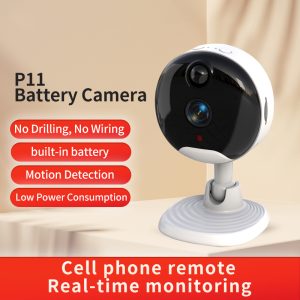
Wireless wins for a flat, a rental, a back garden with no power, or anyone who will not chase walls. Our P9 battery camera and P11 no-drill camera exist for exactly that case — mount anywhere, no cable, no hole in the wall the landlord will notice.

Resolution: what 2 MP and 4 MP actually mean

Resolution is the most oversold number on the box. For a camera watching a doorway four metres away, 2 MP (1080p) is enough to recognise a face; 4 MP helps when you need to read a number plate or zoom into a recorded frame afterwards. Beyond that, lens and sensor quality matter more than megapixels — and so does where the camera points. If you are deciding between battery and mains for the same spot, our comparison of battery versus plug-in cameras covers that specific trade. Tuya vs Sonoff Smart Switch: Which Ecosystem Should You Build On?

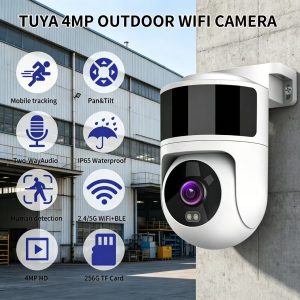
For an outdoor position with coverage in two directions, a dual-lens model does more than a higher-megapixel single lens: the KT-A36 and dual-lens PTZ keep a fixed wide view while the second lens tracks movement.

Power: the constraint that decides everything

Ask One question before shopping: is there a socket or a cable within reach of where the camera needs to be?

  • Yes — a plug-in indoor camera such as the P10 mini or the USB 3 MP camera never needs charging.
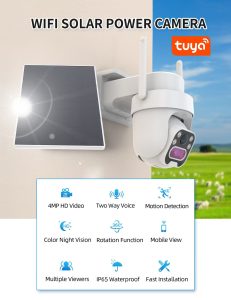
  • No, but there is sun — a solar PTZ camera runs through winter in most climates.
  • No, and no sun either — battery, and accept that you charge it every few months.
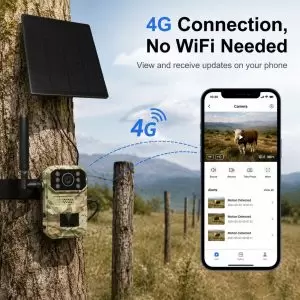
  • No power and no WiFi — a 4G LTE solar camera is the only answer, at the cost of a data plan.

Storage: local, cloud, or both

A microSD card in the camera is the cheapest and keeps footage even when the internet is out. Cloud storage survives somebody stealing the camera, which is the entire argument for it. Most people end up with both: card for continuous local recording, cloud for the clips that matter. Check the card size the model supports before ordering — this is the spec most often discovered after installation.

Night vision and false alarms: the two things people complain about

Every camera here sees in the dark; the difference is what the image looks like and how often it wakes you up. Infrared night vision gives a monochrome picture that is perfectly good for identifying a person at a doorway. Full-colour night vision keeps colour in low light, which matters when you need to describe clothing or a vehicle rather than just prove someone was there.

False alarms are the more common complaint, and they are a settings problem more than a hardware One. A camera pointing at a road will trigger on every passing car; one aimed at a hedge triggers on wind. Two adjustments solve most of it: drop the detection sensitivity a notch, and draw a detection zone that excludes the road or the hedge. Human-shape detection, available on the PTZ models, filters animals and moving branches out entirely. Aim the camera across the approach rather than straight down it and you will cut triggers again, because motion crossing the frame is detected far more reliably than motion coming at the lens.

Frequently Asked Questions

Is a wireless camera still “CCTV”?

Technically it is an IP camera on a closed network, not CCTV in the original sense. In practice the search term survives and everyone means home surveillance, so do not get hung up on the label.

Do I need a recorder (NVR/DVR)?

Only if you want continuous recording, more than a day or two of retention, or a single place to review several cameras. For one to three cameras, cards and cloud are simpler.

Will it work if the internet goes down?

Local recording continues. Remote viewing and notifications do not. A wired system with a recorder keeps working end to end.

How many cameras does a three-bedroom house need?

Usually two: the front door and the back or side access. Our guide to how many cameras a three-bedroom home needs goes through the Positions people Actually use.

Related Articles

You Might Also Like
Posted on — Leave a comment

How Many Security Cameras Does a 3-Bedroom Home Need?

Most people either buy one camera and discover it covers nothing useful, or buy six and spend a weekend running cables. A three-bedroom house has a finite number of genuinely useful camera positions, and covering those well beats covering everything badly.

Here is the plan that fits most layouts, using models from our security camera range.

Start with entrances, not rooms

Burglary statistics aside, the practical reason for a camera is to answer “who came to the door” and “what happened at the boundary”. That means the priority order is:

  1. Front door — the single most useful position in any house.
  2. Back door or garden access — the second most common entry point and the one people forget.
  3. Driveway or parking — vehicles, deliveries and the approach to the house.
  4. Side passage or gate — if there is one, it is worth a camera more than any indoor room.

A realistic count: three to five cameras

Position Suggested type Notes
Front door Video doorbell or compact outdoor camera The only position almost every home should have
Back garden / patio door Outdoor PTZ or Solar model Covers the approach from the garden
Driveway Dual-lens camera Overview plus detail on vehicles and plates
Hallway (optional) Plug-in mini camera Indoor coverage of the main entry corridor
Nursery (optional) Baby monitor Dedicated unit with its own screen, not a Security camera

Three cameras (front, back, driveway) covers the essentials. Five adds hallway and nursery. Beyond five in a three-bedroom house, you are usually duplicating views.

Where cameras are a waste

  • Bedrooms — rarely justified unless there is a specific concern.
  • Kitchens and living rooms — large open spaces where one camera sees very little detail and pets trigger constant alerts.
  • Landings upstairs — no external access point, so nothing to catch.
  • Duplicate views of the same door — a doorbell camera plus an outdoor camera aimed at the same doorstep is usually redundant.

Practical limits that decide the real number

Three things will cut your plan short before the layout does:

  • WiFi coverage. Every camera needs a usable 2.4 GHz signal where it sits. Test at each position with a phone before buying.
  • Power at outdoor positions. If there is no socket, you are choosing between a solar model and a Battery model — see cameras that run without a power outlet.
  • Storage. More cameras means more card space or a cloud plan. Continuous recording multiplies the requirement; motion-only clips keep it small.

One decision that saves money: doorbell or camera at the front?

If you only want to know who is at the door, a video doorbell is cheaper and better at it than a camera. If you want to see the approach, the path and the street, a camera does more. Many homes end up with a doorbell at the front and a camera at the back — which is a perfectly good three-camera plan with the driveway as the third.

FAQ

Is two cameras enough?
For a small three-bedroom house with one external door and a back gate, two (front and back) covers the main risk. Add the driveway if there is parking.
Should indoor cameras face outside?
Only with a camera designed for it. A standard indoor camera behind glass gives reflections by day and infrared fog at night — see our window camera guide.
Do I need continuous recording everywhere?
No. Motion clips are enough for most positions. Reserve continuous recording for one or two places where the timeline matters.
Can all cameras go in one app?
Yes — the Tuya / Smart Life app handles multiple cameras in a single account, including a mix of indoor, outdoor and doorbell models.
What about privacy rules?
Avoid pointing cameras into neighbours’ windows or shared spaces beyond your own boundary, and tell anyone working in the house that cameras are present.
How high should outdoor cameras be?
Roughly 2.5 to 3.5 metres: out of easy reach, still Low enough for a usable face angle.

Related Articles

You Might Also Like
Frequently Asked Questions

Is Many Security Cameras worth buying?

Based on the breakdown in this article, Many Security Cameras offers a solid mix of features and value. If your main goal matches the key benefits described above, it is a practical choice for everyday use.

How do I choose the right many security cameras for my needs?

Start with your core use case, then compare battery life, compatibility, and build quality as covered above. Choosing the right many security cameras comes down to matching specs with how you actually use it.

Does many security cameras require a companion app?

Most devices of this type pair with a free companion app for setup and firmware updates. A few advanced features may sit behind a paid plan, so check the official specs page before buying.

Posted on — Leave a comment

How to Set Up a CCTV Camera System at Home

A CCTV camera system for a house no longer needs a contractor, a rack of recorders and a day of cable runs — three or four cameras and one app will do. What still decides whether the system works is planning: where each camera goes, how it gets power, how the WiFi behaves at that exact spot, and where the recordings live. Get those four right and the installation itself takes an afternoon.

What “CCTV” means for a home today

Two architectures cover almost every home:

  • App-based wireless cameras: each camera has its own WiFi radio and records to a microSD card, to cloud storage, or both. No recorder, no wiring to a central box, and you watch everything in one app. This is what most houses should install first.
  • Recorder-based (NVR/DVR) systems: cameras run on one cable to a recorder that stores weeks of footage on a hard drive. Better for continuous 24/7 recording across many cameras and for long retention, but it needs a central location with power and network, plus cable runs.

A practical compromise many owners land on: wireless cameras for coverage and quick setup, with one recorder or a larger memory card for the camera that must not miss anything.

Step 1: plan coverage before you buy anything

Walk the property in the evening and note what you want to see. Typical priority list, in order of value: Smart Switch for Water Heater and AC

  • Front entry and driveway: who arrives, which vehicle, was the gate left open.
  • Back door and garden path: the quiet side of a house is the one that needs a camera most.
  • Side alley or parking space: anything you cannot see from a window.
  • Indoor main area: hallway or living room, mainly for pets, children, or peace of mind while travelling.

One camera per priority area beats four cameras scattered at random. Start with the entry and one outdoor watcher, live with them for a month, then add more where a gap shows up.

Step 2: solve power for each position

Power is the constraint that decides the model, not resolution:

  • Mains socket nearby: a plug-in camera can stream continuously and never runs flat. Easiest and most reliable.
  • Outdoor with sun: a solar PTZ camera tops itself up daily and forgets about charging entirely.
  • No sun, no socket: a battery camera installs in minutes, but it wakes on motion rather than streaming all day — battery life depends on how busy the spot is.
  • Long cable run and no WiFi: a 4G camera with a SIM card covers outbuildings, farms and construction sites where neither power nor network reaches.

Step 3: get the network right

Almost every consumer camera works on 2.4 GHz WiFi, and signal strength at the mounting point is the number-one cause of “my camera keeps going offline”. Before mounting, stand where the camera will hang and check the signal on your phone. If it is weak:

  • Move the camera a metre or two — often the difference between a dead spot and a solid link.
  • Point the router antenna vertically and raise the router off the floor.
  • Add a mesh node or WiFi extender on the same side of the house as the camera.
  • Keep the camera off a crowded 2.4 GHz channel if your router lets you choose one.

Also give the camera a fixed IP or DHCP reservation. Most “camera disappeared” events are the router handing out a different address after a reboot.

Step 4: mount for footage you can actually use

  • Height: 2.2 to 2.5 m. High enough to be out of reach, low enough to identify a face rather than a hat.
  • Angle: tilt down 15 to 30 degrees so the lens sees the approach path, not the sky.
  • Light: avoid aiming straight into a street lamp or the setting sun — flare wipes out detail for hours a day.
  • Weather: keep the lens under an eave if possible, and confirm IP65 or better for anything outdoors.
  • Privacy: never point a camera into a neighbour’s window or a bathroom. It is both unpleasant and often illegal.

Step 5: decide where recordings live

  • microSD card in the camera: free, local, works with no internet, survives an internet outage. This is the baseline everyone should have.
  • Cloud subscription: survives a stolen camera and lets you review events from anywhere. Usually a few dollars per camera per month.
  • Recorder with a hard drive: best for many cameras and long retention; requires a central cupboard with power and network.

Card plus cloud is the comfortable setup: the card handles everyday clips, the cloud covers the events that matter if hardware disappears.

Step 6: put the system on your phone

  1. Install the app (Tuya Smart or Smart Life for Tuya-based cameras) and create one account for the whole house.
  2. Power the camera, hold the reset button until the indicator flashes, and let the app find it.
  3. Enter the 2.4 GHz WiFi password. Pair one camera at a time, within two metres of the router, then move it to its final position.
  4. Rename each camera by location — “Front door”, “Driveway” — not by model number.
  5. Turn on human detection and draw motion zones so passing cars and trees stop triggering alerts.
  6. Set a notification schedule: alerts when nobody is home, or overnight only. Alarm fatigue is what kills a useful system.
  7. Test playback from the card and from the cloud before you call the job done.

Common problems and the usual cause

  • Camera offline at night: infrared LEDs pull more current; a marginal power supply or a weak WiFi link fails first in the dark.
  • Constant false alerts: motion detection instead of human detection, or a zone that includes a road or a swaying branch.
  • No playback: card not formatted in the camera, or a cloud plan that expired.
  • Blurry night images: lens dirty, or a plastic lens cover still on — check before blaming the sensor.

XingLiao security cameras

Frequently Asked Questions

How many cameras do I need for a house?

Two to four for most homes: front entry, one more outdoor position, and one indoor common area. Add cameras only where the first set leaves a real gap — extra cameras mostly create extra alerts.

Do CCTV cameras need WiFi?

The app-based ones do, because that is how live view and alerts reach your phone. Cameras with local card recording and no app are the exception, and a 4G camera or a Doorbell with its own wireless monitor covers sites where no router reaches.

Can I install a CCTV system myself?

Yes, with wireless cameras it is a one-person job: mount the bracket, pair the camera, set the zones. Recorder-based systems with long cable runs are the only version where an installer genuinely saves time.

What is the difference between CCTV and a security camera?

In everyday use, almost nothing. “CCTV” traditionally describes a closed system of cameras recording to a central box; “security camera” describes the single WiFi unit in an app. Modern homes usually mix both ideas: app cameras for coverage, a recorder where retention matters.

How long does a battery camera last?

Weeks to months depending on the location. A quiet indoor spot can run three months per charge; a street with constant traffic can drain one in a week or two. Solar panels remove the problem outdoors.

Do I need a subscription?

No. A microSD card in the camera gives free local recording. Subscriptions buy off-site storage, which only matters if you want footage after the camera itself is stolen or broken.

Where should I not put a camera?

Anywhere that watches a neighbour’s property, a bathroom, or a bedroom shared with guests. Point cameras at your own entrances and pathways only — that is both the useful placement and the legal one.

Related guides

Browse all security cameras · Tell us the layout of your property and we will suggest a camera plan

Posted on — Leave a comment

How to Build a Home Automation System with Tuya

A home automation system sounds like a project. In practice it is a habit: you start with one switch that obeys your phone, and six months later the hallway light turns itself on at sunset, the thermostat knows when you left, and a water leak under the sink messages you before it becomes a repair bill. This guide shows the shortest path to that end state — which ecosystem to pick, what order to buy in, and how to wire the automations together so the house genuinely runs itself.

Step 1: pick one ecosystem and stay in it

The single biggest beginner mistake is mixing three apps: one brand for bulbs, another for sockets, a third for the camera. Every added app doubles the friction of every future automation. The fix is choosing one ecosystem up front.

For most homes the practical answer is Tuya (or its consumer face, the Smart Life app). It is the platform behind an enormous range of devices — switches, sockets, sensors, cameras, curtain motors, thermostats — from many manufacturers, so you are never locked to one brand’s prices. It talks to Google Home and Alexa for voice control, supports Zigbee through a gateway, and a single account holds your entire home. XingLiao’s Smart devices are built on it, which is why everything below plays together out of the box.

Step 2: start with lighting

Lighting delivers automation’s most visible daily payoff, so it earns its budget first. A WiFi touch switch replaces the wall switch you already have — same box, same wires — and suddenly that room is on your phone, on schedules, and on voice commands. Because nothing is plugged in and nothing runs on batteries, it is also the most maintenance-free Smart device you will ever own. M3 Pro Foldable 3-Axis Gimbal Stabilizer, Professional Handheld Gimbal for Smartphones

  • Sunset schedules: porch and hallway lights follow the sun automatically.
  • Countdown timers: bathroom fans that switch themselves off.
  • Vacation mode: lights that mimic an occupied house.

Step 3: add the senses — sensors

Switches are the muscles; sensors are what make the system Smart. The four that earn their cost fastest:

  • Door/window sensor: the front door messages you when it opens at 3 p.m. — or at 3 a.m.
  • PIR motion sensor: movement triggers lights, cameras, or both. Stair lights that only exist when someone is on the stairs never get old.
  • Temperature/humidity sensor: the quiet hero — it can trigger the thermostat, a dehumidifier socket, or just tell you why the bedroom feels stuffy.
  • Water leak sensor: under the sink and behind the washing machine, it is the cheapest insurance in the house.

Step 4: add eyes — cameras and doorbell

Once lights and sensors are in the app, a camera stops being a gadget and becomes part of the system: the Doorbell detects a person, the hall light comes on, the camera clips the event. Indoor PTZ cameras watch rooms and pets; a solar outdoor camera covers the driveway without ever needing a ladder for charging.

Step 5: the gateway, and when you actually need it

WiFi devices talk straight to your router. But battery-powered sensors usually speak Zigbee, which needs a small smart home gateway plugged in somewhere central. The gateway has two jobs: it collects your Zigbee sensors, and it bridges them to WiFi and the app.

The rule of thumb: first few WiFi devices, no gateway needed. The moment you add battery sensors — door, PIR, temperature — add one gateway. It is a one-time purchase that unlocks the whole sensor aisle, and Zigbee’s mesh also means devices relay for each other, which is more stable than a dozen WiFi devices competing for one router.

Step 6: sockets fill the gaps

Some things will never be smart internally: the humidifier, the fish tank light, the old floor lamp. A WiFi smart socket retrofits intelligence at the wall — and models with energy monitoring tell you which appliance is quietly costing you money, which is often how the socket pays for itself.

Step 7: wire it together with scenes and automations

This is where a collection of devices becomes a home automation system. In the Tuya app, a tap-to-run scene sets many devices with one press, and an automation fires devices when conditions are met. Three proven starters:

  • “Goodnight”: one tap — every light off, doors armed, camera alerts on.
  • “Home in the evening”: door sensor opens after sunset → hall and kitchen lights on for ten minutes.
  • Leak response: water sensor triggers → socket cuts the washing machine and a notification goes out.

Add Google Home or Alexa, and the same scenes answer to voice. At this point you stop operating your home and start supervising it.

XingLiao devices for building your system

Frequently Asked Questions

How much does a home automation system cost to start?

A genuine start — one touch switch, one door sensor, one gateway — costs about as much as a decent pair of shoes. From there the system grows one device at a time, and each piece works standalone from day one.

Do I need to replace all my switches at once?

No. Start with the room you use most. Every device is independent, so the system grows at whatever pace your budget allows without ever being “half-finished”.

Do smart homes need a hub or gateway?

WiFi devices need none — they connect to your router. Battery sensors using Zigbee need one gateway. Many homes run happily for a year on WiFi alone, then add a gateway with their first door sensor.

Does everything stop working if the internet goes down?

Wall switches and sockets keep working locally by touch. Schedules and remote access pause until the router recovers. Zigbee devices linked through a gateway can keep running local automations even offline.

Is a home automation system hard to install?

The hardest step is replacing one wall switch, which is a screwdriver job with the breaker off. Everything else — plugs, sensors, cameras — is peel, stick, scan a QR code.

Can I control it all by voice?

Yes. Link the Tuya skill in Google Home or Alexa once, and every device answers voice commands through the ecosystem you already use.

What should I automate first?

The porch or hallway light on a sunset schedule. It saves real effort every single day, it is visible proof the system works, and it starts training everyone in the house to trust it.

Related guides

Browse switches and control panels · Tell us your rooms and we will plan the device list with you

You Might Also Like
Posted on — Leave a comment

How to Choose a Security Camera for Your Home

A home security camera is the One Smart home device people buy first and keep the longest, because it answers a simple question: what is happening at home right now? But the shopping guides rarely explain the trade-offs. Should you get a plug-in indoor camera or a battery one? Is 2MP enough or do you need 4MP? Does an outdoor camera need solar? This guide walks through every decision in plain terms, so the camera you order is the camera you actually keep using.

Start with the location, not the camera

Every camera is designed around a placement, so decide where it will watch before deciding what to buy:

  • Indoor monitor: a room, a pet, a baby, the front hallway. Any camera works; comfort features matter most.
  • Entry watch: the front door or driveway. Weatherproofing and motion detection matter most.
  • Whole-property watch: yard, parking, outbuildings. Battery life or solar charging becomes the deciding factor.

Buying an indoor camera and mounting it under the eaves “temporarily” is how people end up with a dead camera in month two. Match the camera to the spot and the rest of the choices follow. M3 Pro Foldable 3-Axis Gimbal Stabilizer, Professional Handheld Gimbal for Smartphones

Power: plug-in, battery, or solar

Plug-in cameras (USB or adapter) never run flat and can stream continuously. Put them wherever a socket is within reach — a shelf, a countertop, near the crib. Their one limit is placement freedom: you are tied to the socket.

Battery cameras Install anywhere in minutes with no drilling and no wiring, which is exactly why landlords and renters love them. The trade-off is that they wake on motion rather than streaming all day, so a busy street can drain a battery in a week and a quiet room can run three months. Check whether the battery is rechargeable and how it charges.

Solar cameras are battery cameras with a panel that tops them up daily. For outdoor spots with reasonable sun, they effectively remove charging from your chore list forever. A few cloudy weeks are fine; a permanently shaded north wall is not — put a plug-in or wired model there instead.

Resolution: what 2MP, 3MP and 4MP actually mean

Resolution is the most oversold number in the market. The honest version:

  • 2MP (1080p): plenty for seeing a person, a pet, or whether the door was left open. Fine for small rooms.
  • 3MP: a comfortable middle ground — wider view, sharper detail, still light on bandwidth.
  • 4MP and above: worth it when you need to read a license plate at the gate, recognize a face across a yard, or crop into recordings and still see detail.

Two features matter more than megapixels in practice: night vision quality and motion detection accuracy. Basic infrared night vision shows grey shapes; full-color night vision keeps usable detail after dark. And a camera that alerts on every passing cat will get its notifications muted within a week — human detection or PIR-based detection is what keeps alerts useful long-term.

Framing: fixed, pan/tilt, or dual-lens

A fixed camera watches one angle. Simple, cheap, and nothing to mechanically wear out.

A pan/tilt (PTZ) camera turns and tilts on command from your phone, covering a whole room from one corner. Ideal as a single indoor watcher — one camera, every angle.

A dual-lens camera combines a wide fixed lens with a zooming lens: the wide one detects, the tele one zooms in automatically. For driveways and gates this is the current best value, because you get context and detail from one device.

Storage and what happens when you need the footage

  • TF card (microSD): records locally in the camera, works without any subscription, footage stays in your house. Most home users should insist on this option.
  • Cloud storage: convenient and survives a stolen or smashed camera, but usually a recurring fee.
  • Both: the comfortable answer — card for everyday, cloud as backup for the events that matter.

WiFi and app reality checks

Nearly every consumer camera in this class uses 2.4 GHz WiFi. If your router merges 2.4 and 5 GHz into one network name, pairing usually still works, but a weak signal at the far end of the garden is the number-one cause of “my camera keeps going offline.” Check the signal where the camera will hang before you blame the camera. The app side matters too: a camera running the Tuya or Smart Life ecosystem can sit in the same app as your switches, sockets and sensors, which is worth a lot once your Smart home grows past three devices.

A quick buying checklist

  • Where exactly will it hang, and is there power or sun there?
  • Indoor comfort or outdoor weatherproofing (IP65 or better)?
  • Do I need to identify faces and plates (4MP, dual-lens) or just see what’s happening (2-3MP)?
  • Full-color night vision if the area matters after dark.
  • Human or PIR detection, so alerts stay useful.
  • TF card slot, cloud, or both.
  • Does it join the same app as my other devices?
XingLiao security cameras
Frequently Asked Questions

How many cameras do I need for a house?

One well-placed camera per priority area beats four covering random corners. Typical starters: one indoor main-area watcher, one at the main entry. Add a solar outdoor unit for the driveway when the first two prove their value.

Do security cameras need WiFi?

WiFi cameras do — that is how you get live view and alerts on your phone. If the camera spot has no usable WiFi, options include cameras with local TF recording and screen-based Doorbell systems that run their own wireless link, no router required.

What resolution should I choose?

For rooms and general awareness, 2MP is fine. For entries, driveways or anything you might need as evidence, choose 3MP or 4MP. Beyond that, lens quality and night vision matter more than extra pixels.

Are battery cameras reliable?

Yes, with realistic expectations. They wake on motion rather than streaming continuously, so battery life depends on how busy the spot is. In a quiet indoor spot a charge lasts months; on a street with constant traffic it can be weeks. Solar panels solve this outdoors.

Can I use a security camera as a baby or pet monitor?

Indoor cameras with two-way audio and pan/tilt do this well — you can talk, listen and follow movement. Look for color night vision so the room stays visible without lights.

What is the difference between a security camera and a video doorbell?

A doorbell is a camera with a button and a chime, designed for the door and two-way conversation with visitors. A security camera is a general watcher. Many homes end up with one of each — the doorbell handles people, the camera handles everything else.

Do I need to pay a monthly fee?

Not with TF-card cameras — recording is local and free. Cloud plans are optional extras for off-site backup, typically a few dollars a month per camera.

Related guides

Browse all security cameras · Tell us where you want coverage and we will recommend the right model

Related Articles

You Might Also Like
Posted on — Leave a comment

Intercom for Home: Choosing a Video Intercom System

An intercom for Home is a two-way communication system that lets you see and talk to whoever is at your door, from a screen inside the house or from your phone. Modern systems are Video intercoms: the outdoor unit has a camera, microphone, speaker and a call button, and the indoor unit is either a dedicated monitor, a chime box, or simply your smartphone.

There are three ways to build one, and the right choice depends almost entirely on whether you can run a cable to the door:

  • Wireless video intercom (battery or mains, Wi-Fi) — no cable to the door, phone-first. The fastest retrofit and the only realistic option for most apartments.
  • Wired 2-wire or 4-wire IP system — cable from the door station to an indoor monitor. Most reliable, standard for new builds and villas.
  • RF (no Wi-Fi) intercom kit — outdoor unit talks directly to an indoor monitor over radio, no router, no app, no internet. Works in buildings with no network and for users who do not want a phone app.

Which type fits your situation

Situation Recommended system Why
Apartment, cannot drill or run cable Wireless Wi-Fi doorbell with indoor chime Battery or existing low-voltage Wiring, no structural work
House with an existing doorbell cable Wired Wi-Fi doorbell using the existing wires Continuous power, no charging, no Wi-Fi dropout at the door
New build or full renovation Wired IP video intercom with monitor Cable is cheap while walls are open; best video quality and reliability
No internet at the property RF intercom kit with monitor Works standalone; two-way video without a router
Multi-tenant building IP system with multiple indoor monitors Each flat answers its own door; adds access control
Gate 20+ m from the house 4G or long-range RF / Wi-Fi extender Wi-Fi will not reach reliably at that distance

What to check before buying

  1. Power at the door. Is there a low-voltage cable (8–24 V AC/DC), mains, or nothing? This decides battery vs wired more than anything else.
  2. Wi-Fi strength at the door. Stand outside with your phone on 2.4 GHz. Under two bars and you will get missed calls — add an extender or choose RF.
  3. Who needs to answer. Phone only, an indoor monitor, or both? Elderly residents and children usually need the indoor screen.
  4. Chime. A wireless chime in the house means visitors are heard even when phones are on silent.
  5. Storage. microSD in the unit, cloud plan, or the monitor’s own storage. For evidence, keep it off-device or in the cloud.
  6. Night vision and field of view. IR for a black-and-white image after dark; a taller vertical field of view captures a face and a parcel on the step.
  7. Access control. If you want to release an electric lock or a gate, confirm the unit has a relay output and that the indoor monitor supports unlock.

Installation notes that save callbacks

  • Mount height 1.4–1.6 m to the Camera centre — high enough to resist tampering, low enough to see faces rather than hair.
  • Avoid backlight. A camera facing direct sun or a Glass porch roof produces silhouettes. Shift the unit or add a small shade.
  • Battery units need a plan. Event-based recording keeps consumption down; heavy traffic areas may need charging every 1–3 months.
  • Use the transformer supplied. Reusing an old mechanical chime transformer often causes buzzing or reboots.
  • Test the call before fixing the plate. Make one call, check the angle, then drill the final holes.
  • Weather rating. IP65 or better for an exposed door; a rain shield extends the life of any unit.

Intercom vs video doorbell: is there a difference?

In practice, little — the terms overlap. “Video doorbell” usually means a single outdoor unit that calls your phone. “Video intercom” usually implies an indoor monitor as well, and often two-way video between rooms or flats. The features to compare are identical: camera resolution, power, network, storage, night vision, and whether a second indoor station is supported.

Frequently Asked Questions

Do I need Wi-Fi for a home intercom?

Not necessarily. Wi-Fi doorbells need Wi-Fi for app calls. RF intercom kits work with no network and no internet, using a dedicated indoor monitor — the right choice for remote properties or users without Smartphones. Smart Switch for Water Heater and AC

Can I install one in an apartment without drilling?

Yes. Battery doorbells mount with adhesive or a no-drill bracket, and the indoor chime plugs into any socket. Check your lease before fixing anything to the door frame.

Will it work when I am not at home?

With an app-based system, yes: the call reaches your phone over mobile data, you can talk and, if the unit has a relay, unlock. With an RF kit or a monitor-only system, calls are answered at home only.

How many indoor monitors can one door station support?

Wi-Fi doorbells typically support one chime plus multiple phone accounts on the same app. IP intercom systems support two to six indoor monitors depending on the model, which is why they are used in multi-tenant buildings.

Can it open a gate or an electric lock?

Only Models with a relay output. Confirm the voltage and whether it is a dry contact, and have an installer wire the lock release — a shorted lock supply is the most common installation fault.

What should a project or wholesale buyer verify?

Power option per site, whether the kit includes the indoor monitor and chime, RF or Wi-Fi, resolution and field of view, storage architecture, app platform, certifications for the destination market (CE, UKCA, FCC, RoHS), and minimum order quantities — typically 500 pieces per model for standard configurations.

Related products

Related guides

Related Articles

You Might Also Like
Posted on — Leave a comment

CCTV Camera vs IP Camera: What a Home Really Needs

CCTV camera is the umbrella term for any camera used for Video surveillance; an IP camera is one specific type — a camera that sends video over a network using the Internet Protocol. Almost every camera sold for Home use today is an IP camera, so in practice “CCTV for home” means “a set of IP cameras plus somewhere to store the video”.

The real decision is not CCTV versus IP. It is four narrower choices: how the camera gets power, how it connects, where the video is stored, and how much resolution you actually need. This guide answers those in the order a buyer hits them.

CCTV vs IP camera: the terms, cleared up

Term What it means now Still relevant?
CCTV (closed-circuit TV) Historically analogue cameras wired to a recorder. Now used loosely to mean “surveillance camera”. As a buying category, yes. As a technology, mostly legacy.
IP camera Any camera that streams digital video over Wi-Fi or Ethernet. Yes — this is what you will actually buy.
Analogue HD (TVI / CVI / AHD) Coaxial cable to a DVR. Only for existing cable runs in older buildings.
Wi-Fi camera IP camera that connects over wireless instead of a cable. Yes — the default for homes.
PTZ Pan-tilt-zoom; the head moves. Yes, for large single areas; a fixed camera is better for doorways.

Choice 1 — Power: mains, battery or solar

Power Pros Cons Best for
Mains (plug-in or wired) Never needs charging, can record continuously Needs a socket or a cable run Entrances, driveways, shops
Battery Install anywhere in minutes, no drilling Charges every 1–6 months; recordings are event-based to save power Rentals, outbuildings, temporary cover
Solar + battery Same freedom as battery, no ladder trips Needs a few hours of real sun per day Gates, gardens, farms
PoE (power over Ethernet) One cable does power and data, most reliable Needs cable and a PoE Switch or NVR New builds, serious installs

If you want continuous recording rather than clips triggered by motion, Choose mains or PoE. Battery cameras sleep between events by design — that is how they last months on a charge.

Choice 2 — Connection: Wi-Fi, wired or 4G

  • Wi-Fi (2.4 GHz) — the default. Note that 2.4 GHz, not 5 GHz, is what cameras use; it has the range to reach a garden or a gate.
  • Ethernet / PoE — immune to Wi-Fi congestion; preferred where the camera matters most.
  • 4G LTE — for sites with no broadband: construction sites, barns, remote gates. Needs a data SIM.

Coverage check before you buy: stand at the mounting point with your phone, run a speed test on 2.4 GHz, and make sure you have at least two bars. A camera at the edge of Wi-Fi will drop offline in bad weather, which is exactly when you need it. Smart Switch for Water Heater and AC

Choice 3 — Storage: card, cloud or NVR

Option Cost Survives camera theft? Retention
microSD card in the camera One-off No Days to weeks, overwritten in a loop
Cloud subscription Monthly Yes 7–30 days depending on plan
NVR / local recorder Higher up front Yes Weeks to months, drive-size dependent

For evidence that survives a break-in, storage must be off-camera: cloud or a recorder kept inside. A card-only camera takes its own footage with it when it is stolen. M2 Foldable 3-Axis Gimbal Stabilizer, Portable Handheld Gimbal for Smartphones

Choice 4 — Resolution and optics

  • 1080p (2 MP) — fine for a doorway or a small room; identifiable faces only within a few metres.
  • 2K / 4 MP — the sensible default. Enough detail to read a face at a gate and a number plate in daylight.
  • 4K (8 MP) — worth it only with good lighting and enough storage/bandwidth; night performance still depends on the sensor, not the pixel count.
  • Lens — wide-angle (110°+) for rooms, narrower for long driveways.
  • Night mode — infrared gives black-and-white detail; “full-colour night vision” uses a larger sensor or a small white LED and produces usable colour after dark.

Placement that actually works

  1. Front door — 2.0–2.2 m high, slightly off-axis to the door so you get the face, not the top of a head. A doorbell camera covers this better than a bullet camera.
  2. Driveway — aim down the approach, not at the road; number plates need a narrow field of view.
  3. Back garden / side passage — the most common entry route after the front door.
  4. Inside — cover the entry hall, not bedrooms. Avoid pointing at a neighbour’s window and check local rules before recording shared areas.
  5. Avoid backlighting — a camera facing a bright window or a low sun will produce silhouettes. Move it or enable WDR.

Privacy and compliance basics

  • Do not aim cameras at neighbouring property or into shared hallways without agreement.
  • In the EU/UK, recording beyond your own boundary can put you under data-protection obligations; keep footage secure and delete what you no longer need.
  • Change default passwords, keep firmware updated, and enable two-factor authentication on the app account.
  • Put a visible notice at the entrance — in many jurisdictions it is expected, and it is a deterrent in itself.
Frequently Asked Questions

Is a CCTV camera the same as an IP camera?

Not exactly. CCTV describes the purpose (surveillance) and originally meant analogue systems; IP describes how the video travels (over a network). Modern home systems are IP cameras, and people still call the whole setup CCTV. M1 Foldable 3-Axis Gimbal Stabilizer, Portable Handheld Gimbal for Smartphones

Do I need a recorder?

No. A Wi-Fi camera with a microSD card and a cloud plan is a complete system for one to four cameras. A recorder becomes worthwhile past four cameras, or when you need weeks of continuous footage.

Will a wireless camera work without internet?

It will keep recording to its card. Remote viewing, notifications and cloud upload need internet. Some systems record to a local NVR over the home network with no internet at all.

What resolution is enough to identify a face?

4 MP (2K) with a lens matched to the distance is the practical answer. Distance matters more than megapixels: a 4 K camera pointed 15 metres down a garden will not identify a face, while a 4 MP camera 2 metres from a doorway will.

How many cameras does a typical home need?

Two to four: front door (doorbell camera), driveway or gate, back garden, and optionally an entry hall. Coverage of approach routes matters more than the number of devices.

What should a wholesale or project buyer check?

Resolution and sensor, power option per site, storage architecture, app platform (Tuya or private), onvif/RTSP support if integrating with a third-party NVR, certifications for the destination market (CE, UKCA, FCC, RoHS), and minimum order quantities.

Related products
Related guides

Related Articles

You Might Also Like
Posted on — Leave a comment

Smart Switches for Home: Choosing Plate, Gang and Protocol

Smart switches for home use replace a standard wall switch with a connected one, so the light, fan or curtain it controls can be turned on by app, voice, schedule or automation — while the physical button still works exactly as before. For most homes this is the cheapest and least disruptive way to automate lighting: you keep your existing bulbs, you do not need a hub for Wi-Fi models, and one switch can automate every bulb on that circuit at once.

The catch is that a Smart switch is not a universal part. It has to match the wiring in your wall (neutral wire or not), the size of your wall box and plate, the number of gangs you need, and the ecosystem your family already uses. This guide walks through those four decisions in the order that actually matters, with the sizes and protocols we ship every day. M1 Foldable 3-Axis Gimbal Stabilizer, Portable Handheld Gimbal for Smartphones

What a smart switch does that a smart bulb does not

A Smart bulb is controlled at the bulb; a smart switch is controlled at the wall. That single difference changes almost everything about how the room behaves. M2 Pro Foldable 3-Axis Gimbal Stabilizer, Advanced Handheld Gimbal for Smartphones

  • The wall button still works. Guests, children and anyone with a phone out of battery can still turn the light on. With smart bulbs, flipping the wall switch off kills the bulb’s connection — the classic “why is my smart bulb offline” problem.
  • One device covers many bulbs. A six-light ceiling track needs one smart switch, not six smart bulbs.
  • It works with the lights you already own. No need to replace every bulb with a Wi-Fi one, and no colour-temperature mismatch between fittings.
  • Automations are physical. Scene buttons, double-press actions and “turn everything off at the front door” work even if the internet is down, because the logic stays local on a Zigbee hub or runs on the switch itself.

Where bulbs win: colour. If you want RGB mood lighting or tuneable white, that has to happen in the bulb. A switch only controls power. M2 Foldable 3-Axis Gimbal Stabilizer, Portable Handheld Gimbal for Smartphones

Decision 1 — Wiring: do you have a neutral wire?

Open a switch plate (turn the breaker off first) and look at the wires behind it. This is the single most common reason a return happens.

What is in the box What you can install Notes
Live + switched live only (2 wires) No-neutral switch, or a capacitor-based model No-neutral switches sip power through the load; very low-wattage LED lamps can flicker. Add the supplied capacitor across the lamp if you see it.
Live + neutral + switched live (3 wires) Any Wi-Fi or Zigbee switch This is the standard in most homes built after 2000 in the EU/UK and in most North American homes.
Live + neutral + 2 travellers (staircase) 2-way / 3-way smart switch pair, or one smart switch + one mechanical Both ends of a staircase circuit must be replaced with a matched pair for full control from both positions.

Rule of thumb: if your home was wired before the 1990s, assume no neutral and either buy a no-neutral model or budget for an electrician to pull one. If you are unsure, a no-neutral switch is the lower-risk purchase — it works in both cases, with the flicker caveat above. F10 3-Axis Gimbal Stabilizer, Handheld Smartphone Stabilizer for Smooth Video Recording

Decision 2 — Plate size and gang count

Plate sizes are regional and they are not interchangeable. Ordering a 86 mm plate for a 118 mm box leaves a gap; ordering the wrong gang count means the plate cannot cover the hole.

Standard Plate size Typical market Gangs available
EU / CN round & square 86 × 86 mm Germany, France, Spain, most of Asia 1 / 2 / 3
UK / British Standard 86 × 86 mm and 147 × 86 mm UK, Ireland, UAE, Malaysia, Singapore 1 / 2 / 3 / 4 / 6 (147 × 86)
US / North America 118 × 72 mm (decorator style) USA, Canada, Mexico 1 / 2 / 3 / 4
Large-format touch panels 120 × 74 mm, 147 × 86 mm Hotels, premium residential 2 / 3 / 4 / 6 / 8

Gang count is the number of independent switches on one plate. Count what is on the wall today and buy the same — a 4-gang plate cannot be cut down to 2, and a 2-gang plate will not cover a 4-gang hole.

Decision 3 — Protocol: Wi-Fi, Zigbee or Matter

Protocol Needs a hub? Works when internet drops Best for
Wi-Fi (Tuya / Smart Life) No Local button only; app control needs cloud Retrofit jobs, 1–5 switches, rentals, DIY
Zigbee 3.0 Yes Yes — automations run on the hub Whole-home, 10+ devices, scenes and sensors
Matter over Wi-Fi / Thread No (needs a Matter controller) Yes Apple Home / Google / Alexa mixed households
RF 433 / 315 MHz No Yes No-Wi-Fi homes, garages, outbuildings

A practical choice: start with Wi-Fi if you are automating fewer than six points. Move to Zigbee once you want door sensors, motion sensors and “if the hallway sensor triggers at night, turn on the hallway light at 20 %” — those automations need a hub to run locally and to keep the mesh responsive.

Decision 4 — Load type and rating

Every switch has a maximum load and a minimum load. Exceeding the maximum burns the relay; going under the minimum causes the flicker already mentioned.

  • Resistive loads (incandescent, most LED drivers, heaters): typically 10 A per gang for lighting.
  • Curtain / motor loads: use a dedicated curtain switch with a reversible relay and a defined run time — a lighting switch will damage a tubular motor.
  • Fan speed control: needs a fan-specific module, not a dimmer.
  • Dimming: only if both the switch and the lamp are dimmable (trailing-edge for LED).

Which rooms get the most benefit

  1. Entry & hallway — “arrive home” scene, and a single off button by the door that kills every light.
  2. Bedroom — bedside scene, and a double-press on the switch that turns the whole flat off Without reaching for a phone.
  3. Living room — 3- or 4-gang plate replaces a bank of switches; scene buttons for film / reading / evening.
  4. Bathroom — combine the switch with a door/window or PIR sensor so the extractor and light run on occupancy, not on memory.
  5. Staircase — 2-way pair so both ends keep working.
  6. Outdoor & garage — schedules for dusk-to-dawn; use an IP-rated enclosure if the plate is exposed.

Installation: what a competent DIY job looks like

  1. Turn off the breaker and verify with a non-contact tester — do not trust the switch position.
  2. Photograph the existing wiring before you disconnect anything.
  3. Identify live (L), neutral (N) and the switched live going to the lamp.
  4. Connect L and N to the smart switch, and the switched live to the output terminal(s).
  5. For multi-gang plates, each gang has its own output but shares L and N.
  6. Mount the plate, restore power, then pair: hold the button until the indicator blinks, and add the device in the app.
  7. Test the physical button before you close the plate. If the button works and the app does not, it is a pairing or Wi-Fi band problem, not a wiring one.

One fault that catches everyone: 2.4 GHz. Wi-Fi smart switches do not join 5 GHz networks. If your router has band steering on, split the SSIDs during setup, or the switch will never appear in the app.

Frequently Asked Questions

Do smart switches work without internet?

The physical button always works. App and voice control need internet for Wi-Fi models. Zigbee models keep local automations running through the hub even when the broadband is down, which is why whole-home installs favour Zigbee.

Can I use a smart switch with Alexa and Google Home at the same time?

Yes. Tuya-based Wi-Fi switches link to both; you enable the skill/action once and the same device appears in both ecosystems. Matter devices can be shared across Apple Home, Google and Alexa simultaneously.

Why does my LED lamp flicker or glow when the switch is off?

With a no-neutral switch, a small current flows through the lamp to power the switch electronics. High-impedance LED drivers turn that into a visible glow. Fitting the supplied anti-flicker capacitor across the lamp, or moving to a neutral-wire model, fixes it.

How many smart switches can one home handle?

On Wi-Fi, the practical limit is your router — most consumer routers start struggling around 30–40 always-connected devices. On Zigbee, a single hub handles 50–100 devices because they mesh with each other instead of with the router.

Do I need an electrician?

If you have a neutral wire and you are replacing a like-for-like plate, it is a 15-minute DIY job in most of the EU and UK. In North America and anywhere without a neutral, and for any work inside a consumer unit, use a licensed electrician — in many jurisdictions DIY work on fixed wiring is not legal.

What should a buyer check before a bulk order?

Plate standard for the destination country, gang count mix, neutral availability in target housing stock, certification (CE / UKCA / FCC / RoHS, plus CCC or PSE where required), app platform (Tuya vs private), and whether the glass panel, frame and button colour can be matched to the local range.

Related products
Related guides

Related Articles

You Might Also Like