Posted on — Leave a comment

How Many Devices Can One Zigbee Gateway Handle?

Gateway specifications quote device counts in the hundreds. Real homes hit practical limits well before the number on the box, and the limit is rarely the count itself — it is what those devices are doing and how they are spread around the house.

This is the planning question behind any whole-home setup using our Zigbee gateways, from a single-room flat to a three-bedroom house with switches, sensors and IR blasters.

The short answer

Setup Typical device count One gateway enough?
Flat, a few sensors 5-15 Yes, comfortably
House, sensors plus switches 20-40 Yes
Whole-home, every switch plus sensors 40-80 Yes, with mains devices to relay
Large or multi-storey, heavy sensor use 80+ Consider a second hub

What actually limits a gateway

  1. Battery devices are the expensive kind. Each battery sensor is a node that sleeps and reports; dozens of them mean constant message traffic. Mains-powered devices (switches, sockets) cost far less because they are always awake and act as routers.
  2. Reporting frequency matters more than count. Twenty temperature sensors reporting every minute generate more traffic than forty switches that only report when pressed.
  3. Physical spread. A gateway with thirty devices in one flat is fine; the same thirty spread over three floors with solid floors between them will struggle at the edges.
  4. WiFi congestion. Zigbee and WiFi share the 2.4 GHz band. A crowded Wireless neighbourhood makes everything worse.

Mesh: the thing that makes it work

Zigbee is a mesh network, not a star. Battery sensors do not talk to the gateway directly — they talk to the nearest mains-powered device, which relays the message. This is the single most useful fact for planning: adding mains-powered switches improves the coverage for all your battery sensors. Mini Smart Breakers: Putting a Whole Circuit on a Schedule Tuya Curtain Motor OEM: Complete Sourcing Guide 2026

A house with twenty battery sensors and no mains Zigbee devices will behave worse at the far corners than a house with the same sensors plus four wired switches spread through it.

When to add a second gateway

  • The far end of the house keeps dropping devices despite sensible placement.
  • You have a detached garage, workshop or garden room that needs its own coverage.
  • You have passed roughly 80 devices, or a high proportion of frequently-reporting battery sensors.
  • You want a hard separation — for example, one hub for the house and one for a rented annex.

Note that devices pair to one hub at a time, so a second hub means managing two groups in the app rather than one seamless network.

Planning tips

  • Pair the farthest devices first, while the gateway is near them, then move the hub to its final position. Devices remember the route.
  • Spread mains devices evenly rather than clustering them near the hub.
  • Avoid pairing everything at once — do it in small groups so you notice a device that fails to join.
  • Keep a list of which device is which; thirty unnamed sensors in an app is unmanageable.

If you are still choosing the hub itself, wired vs wireless gateways covers that decision.

FAQ

Does a second gateway double my device limit?
Effectively yes, but devices do not roam between hubs. You assign each device to one.
Do Zigbee switches count toward the limit?
Yes, but they are the cheapest kind — they are mains-powered and act as routers for other devices.
Why does one sensor keep dropping off?
Usually range or a weak mesh route. Add a mains-powered device nearer to it, or move the gateway more central.
Can a gateway handle switches and sensors together?
Yes — that mix is normal and usually more reliable than sensors alone, because the switches relay.
Do Bluetooth devices use the same capacity?
On multi-mode hubs such as the MHUB-FL-U, Bluetooth devices are handled separately from the Zigbee mesh.
Will adding devices slow the app down?
App responsiveness depends on your network and the cloud service, not the Zigbee mesh. Local automations stay fast.

Related Articles

You Might Also Like

Frequently Asked Questions

Is Many Devices One worth buying?

Based on the breakdown in this article, Many Devices One offers a solid mix of features and value. If your main goal matches the key benefits described above, it is a practical choice for everyday use.

How do I choose the right many devices one for my needs?

Start with your core use case, then compare battery life, compatibility, and build quality as covered above. Choosing the right many devices one comes down to matching specs with how you actually use it.

Does many devices one require a companion app?

Most devices of this type pair with a free companion app for setup and firmware updates. A few advanced features may sit behind a paid plan, so check the official specs page before buying.
Posted on — Leave a comment

Tuya Bluetooth vs ZigBee vs WiFi: How to Choose

Tuya devices reach your phone over one of three radio paths: WiFi, Zigbee or Bluetooth. The protocol is not a preference — it is decided by the device you buy, and it determines whether you Need a hub, how often you change batteries, and how the system behaves when the internet drops. One rule covers most cases: high-bandwidth devices go on WiFi, battery sensors and wall switches go on Tuya ZigBee through a gateway, and a small set of close-range devices runs on Bluetooth alone.

Why the protocol is decided at purchase

A WiFi camera cannot join a Zigbee mesh, and a ZigBee sensor cannot talk to your router directly. The radio is soldered in. That is why choosing the mix matters before the first device ships: the hub decision, the router capacity and the battery replacement schedule all follow from it. The good news is the Smart Life app treats all three paths as one system, so a mixed home still controls everything from a single screen.

Tuya WiFi: bandwidth without a hub

WiFi suits devices that push video or need a direct internet path: Cameras, video doorbells, and simple plugs and switches in homes that will never buy a hub. The trade-offs are power and congestion. A WiFi device never truly sleeps, so battery-powered WiFi cameras measure their charge in weeks or months, not years, and every WiFi device added to a 2.4 GHz router competes for airtime with laptops, TVs and phones. After a power cut, dozens of WiFi devices reconnecting at once is why some homes see a ten-minute smart-home brownout. Mains power plus reasonable router placement makes WiFi dependable; batteries and distance make it disappointing.

Tuya ZigBee: the whole-home backbone

ZigBee devices form their own mesh around a gateway, which is why the Tuya ZigBee Gateway is the first purchase for a serious setup. Battery sensors sleep between events, so a door sensor or leak probe runs one to Two years on a coin cell. Mains-powered ZigBee switches and plugs route traffic for everything else, extending coverage room by room without new hardware. The mesh is local: during an internet outage, hub-stored automations still fire, sensors still report to the hub, and wall switches always work physically. For sensors, wall switches, locks and curtain motors, ZigBee is the protocol that behaves the same on day one thousand as on day one.

Tuya Bluetooth: close range, no hub at all

Bluetooth in the Tuya world plays two roles. First, every Tuya device uses BLE for first-time pairing — the app finds the new device over Bluetooth even before it is on any network. Second, a small class of devices runs entirely on Bluetooth: CO2 detectors, some knob locks, and small battery monitors live in the Smart Life app without a hub, because the phone talks to them directly. The limits are range and presence: reliable control needs the phone within a few meters, and remote control or voice assistants do not exist without a bridge. Bluetooth devices are the right choice for single-room tools you check while standing in the room — not for whole-home automation.

Putting all three together

  • Start with the hub. One Tuya ZigBee gateway covers sensors and switches for the whole home.
  • Sensors and wall switches on ZigBee. Battery devices last years, and mains switches strengthen the mesh for free.
  • Cameras and doorbells on WiFi. Nothing else moves video well; give them a clean 2.4 GHz channel.
  • Bluetooth for room-local tools. A CO2 detector on the desk or a knob lock on an interior door Works hub-free.
  • Keep the router lean. Every device you move to ZigBee is one less WiFi client fighting for airtime.

One device per protocol, chosen well

Frequently Asked Questions

Do I need a hub for Tuya devices?

WiFi and Bluetooth devices need no hub. ZigBee devices need a Tuya ZigBee gateway, and that hub is what unlocks the best battery life and local automations for sensors and switches.

Can a Bluetooth Tuya device be controlled away from home?

Not on its own — Bluetooth range is a few meters and the phone must be nearby. Add a Bluetooth-to-cloud bridge or choose the WiFi/ZigBee version of the device if remote control matters.

Why does my WiFi camera go offline when the router reboots?

Every WiFi device re-joins the router after a reboot, and dozens of devices re-joining at once slows them all down. Cameras feel it most because video needs sustained bandwidth, not a one-shot reconnect.

Is ZigBee better than WiFi for smart switches?

For wall switches, usually yes. A ZigBee switch adds mesh routing for nearby sensors and keeps local control during outages, while a WiFi switch is simpler to install hub-free but adds one more client to a busy router.

Can one Smart Life account mix all three protocols?

Yes. The app presents WiFi, ZigBee and Bluetooth devices in one home, and scenes can combine them — a ZigBee motion sensor can trigger a WiFi camera to start recording.

Which protocol is best for battery-powered sensors?

Tuya ZigBee. Event-driven reporting lets a sensor sleep for months, which is why door, water, motion and temperature sensors on ZigBee run a year or two on coin cells.

Related Articles

You Might Also Like
Posted on — Leave a comment

ZigBee vs ZigBee 3.0: What Actually Changed

Zigbee 3.0 is not a new radio. It is the same 2.4 GHz mesh network that ZigBee has always used, with a unified application layer on top. Before 3.0, a device had to match the hub’s application profile (Home Automation 1.2, Light Link, Building Automation and others ran as separate dialects). ZigBee 3.0 merged those dialects into one language, so a certified 3.0 Sensor, Switch or bulb can join any certified 3.0 coordinator without profile matching. That single change is what buyers actually feel.

The short answer for buyers

If you are buying new ZigBee devices today, buy ZigBee 3.0 certified ones and pair them with a ZigBee 3.0 hub. The radio, mesh routing, channel layout and practical device limits are unchanged, so 3.0 hardware does not reach further or run faster than older ZigBee. What you gain is compatibility: fewer pairing failures, fewer devices that join but expose only a fraction of their features, and a safer path when you later replace your hub.

What stayed exactly the same

The physical and network layer is untouched. ZigBee still runs on the 2.4 GHz band in most regions, still forms a self-healing mesh Where mains-powered devices route for battery devices, and still caps a practical network at roughly 30 to 50 well-behaved devices before latency creeps up. Battery sensors still sleep between reports, which is why a ZigBee door sensor can run Two years on a coin cell while a WiFi sensor of the same size lasts weeks. None of that changed with 3.0, and marketing that implies better range or speed from “3.0” is describing the certification, not the physics. Why Cameras Miss Faces but Doorbells Don’t

What actually changed in ZigBee 3.0

Three things changed that matter to a Smart home buyer. First, profile unification: Home Automation 1.2, Light Link and the building profiles merged into one application layer, which removed the “works with HA hubs only” class of incompatibility. Second, a mandatory base device behavior was defined, so every certified device supports a common set of commands for joining, reporting and identification. Third, security was tightened — install codes and network keys are handled more strictly, which cuts down the replay attacks that older Light Link commissioning allowed.

A fourth change matters to installers: TouchLink commissioning (introduced with Light Link for bulbs) carried into 3.0, so a bulb can be reset and paired close-range without touching the hub app. It is a small convenience that older pure-HA networks never had.

Backward compatibility in real rooms

Old ZigBee Home Automation 1.2 devices mostly do join a ZigBee 3.0 coordinator, because 3.0 hubs keep translation for the legacy HA profile. The honest qualifier is “mostly”: some legacy devices pair cleanly but expose only basic on/off or open/closed, because the advanced features lived in manufacturer-specific clusters the new hub never mapped. Legacy routers (mains-powered plugs and switches) repeat traffic for your 3.0 battery devices without complaint, so keeping an older ZigBee plug in a hallway is fine.

Direction matters too. A 3.0 device joining a very old HA 1.2-only hub is the fragile combination — the hub may not understand the 3.0 commissioning flow. If your hub predates 2017 and has never received a firmware update, plan to replace the hub rather than fight it.

Why hubs from different brands still behave differently

ZigBee 3.0 guarantees that devices speak the same language on the radio. It does not force the hub maker to implement every optional feature. A Tuya ZigBee gateway pairs third-party 3.0 sensors and switches, and the common functions (on/off, open/closed, motion, temperature) generally come through. Niche features — a rare configuration attribute, a manufacturer-specific alarm pattern — depend on whether the hub’s software maps that cluster. This is why a “ZigBee 3.0 certified” badge on the device is necessary but not a complete promise; the practical test is pairing one sample before ordering in volume.

Within one ecosystem the problem mostly disappears. Devices designed for the Tuya ZigBee ecosystem and a Tuya ZigBee gateway are tested against each other, which is the safe default for whole-home rollouts.

What to check before buying

  • Certification wording. “ZigBee 3.0” on the box, not just “ZigBee”. Old HA 1.2 stock is still sold cheap.
  • Hub support. Confirm your coordinator is 3.0. A hub stuck on HA 1.2 turns your new devices into the fragile combination.
  • Green Power, if you want battery-free switches. ZigBee 3.0 carries Green Power devices that harvest energy from the button press itself. Hub support for Green Power is optional, so verify it if you plan to use them.
  • Mains-powered repeaters in the right places. The mesh needs routers between the hub and far battery sensors. Any mains-powered ZigBee device acts as one.
  • Channel planning. ZigBee and WiFi share 2.4 GHz. Set the router to channel 1 or 6 in busy homes and let ZigBee settle away from it.

Devices that make a solid 3.0 starter mesh

Frequently Asked Questions

Is ZigBee 3.0 faster or longer-range than older ZigBee?

No. The radio layer is the same 2.4 GHz mesh. Range and speed improvements you may read about come from better antennas or repeater placement, not from the 3.0 certification itself.

Will my old ZigBee 1.2 devices still work on a new hub?

Usually yes. ZigBee 3.0 coordinators keep legacy Home Automation translation, so basic functions pair and report. Advanced manufacturer-specific features are the part that may not carry over.

Do ZigBee 3.0 devices need the internet?

The mesh itself is local. Devices keep talking to the hub during an internet outage, and time-based automations stored on the hub still run. Remote control from your phone and cloud-dependent scenes are what stop working.

Can I mix brands on one ZigBee 3.0 hub?

Yes, that is the point of the unified application layer. Pair one sample first if the device exposes an uncommon feature, because the hub maker decides which optional clusters to map.

Does ZigBee 3.0 interfere with WiFi?

Both live on 2.4 GHz, so planning matters. Keep the WiFi router on a fixed channel away from the ZigBee channel, and expect a few retries while both networks settle after a router reboot.

How many ZigBee devices can one hub hold?

The specification allows far more than a home needs. In practice, 30 to 50 devices per hub keeps reporting latency low; add mains-powered devices between the hub and distant sensors so battery devices can route through them.

Related Articles

You Might Also Like
Posted on — Leave a comment

Zigbee vs WiFi for Smart Home Devices: What to Use Where

Use WiFi for anything that streams Video or needs the internet directly — cameras, Video doorbells, Smart speakers. Use Zigbee for anything that is battery-powered, numerous and low-data — Door/window sensors, motion sensors, water leak sensors, and switches that only report state. Zigbee devices do not each need your router; they form a mesh that reaches further and keeps working when the internet drops.

The mistake most people make is buying every device in WiFi and then discovering 30 clients on a Home router, batteries that die every few months, and automations that stop when the broadband does.

The practical difference

  • WiFi connects each device straight to your router. High bandwidth, high power draw, one more client per device, and it depends on router quality.
  • Zigbee connects devices to a small hub, and the mains-powered devices in the mesh relay messages for each other. Very low power, instant local response, no router load, but low bandwidth — fine for “door open”, useless for Video.

What to buy in Zigbee

Sensors

Door/window contacts, PIR motion sensors, water leak detectors, rain sensors, temperature and humidity sensors. A Zigbee sensor on a coin cell typically runs one to two years, versus a few months for the WiFi equivalent, and it reports state to the hub locally in well under a second. This is why a whole-house sensor set is normally Zigbee.

Switches and relays that only report state

Light switches, curtain switches and boiler relays are mains-powered, so battery life is not the issue — reliability is. Zigbee keeps them off your WiFi and, importantly, keeps local automations working if the internet goes down.

Large installs

Once you pass roughly 15–20 devices, Zigbee’s mesh matters more than any single device spec. Put a few mains-powered Zigbee devices (Smart plugs or in-wall modules) around the house and they will act as repeaters for the battery sensors. C08 Gimbal Stabilizer 69cm, Extendable Selfie Stick Tripod for iPhone & Android

What to keep on WiFi

Cameras and video doorbells

Video needs bandwidth Zigbee cannot deliver. Keep cameras on WiFi, give them their own 2.4 GHz SSID if your router supports it, and do not judge the rest of your Smart home by how flaky a camera at the front door feels.

Plugs and appliances you want to control from anywhere without a hub

A WiFi Smart plug is the simplest possible first device: no hub, works with voice assistants directly, and metering models report power. If you only want two or three, WiFi is fine.

Where a hub is unavoidable

Zigbee needs a coordinator — a hub, a speaker with a built-in radio, or a control panel. That single purchase is what makes the rest cheap and reliable. Choose a hub that supports Zigbee 3.0 so devices from different brands interoperate for basic on/off, open/close and battery reporting. Note that brand-specific extras (advanced metering, proprietary scenes) may still need that brand’s own app.

Matter and Thread, briefly

Matter is a device-level standard that sits above the transport: it lets a device work with any Matter-certified controller, whether it arrives over WiFi, Thread or a bridge. Thread is a low-power mesh in the same role as Zigbee. In practice: if you are buying sensors today, a Zigbee 3.0 or Matter-over-Thread device from a brand whose hub you already own is the safe choice.

Planning a house, room by room

  • Front door: WiFi video doorbell (bandwidth), Zigbee door contact (backup), Zigbee leak sensor if there is a utility cupboard nearby.
  • Living room: Zigbee motion sensor for lighting automations; WiFi plug for the lamp or TV standby load.
  • Kitchen and utility: Zigbee water leak sensors under the sink, behind the dishwasher and next to the boiler — these are the cheapest insurance in a smart home.
  • Bedrooms: Zigbee temperature/humidity sensors; keep cameras out of sleeping areas.
  • Heating: WiFi thermostat Where it needs remote scheduling, Zigbee boiler relay where it only follows a Schedule and a local temperature sensor.

Troubleshooting checklist

  • Sensor drops offline: add a mains-powered Zigbee repeater between it and the hub; check for a metal cabinet or a mirror in the path.
  • Pairing fails: bring the device within a metre of the hub, reset it properly (usually a 5-second hold), and pair before mounting.
  • Automations are slow: check whether the automation runs locally or in the cloud; cloud ones stop when the internet does.
  • WiFi device keeps disconnecting: you probably have too many clients or a 2.4/5 GHz band-steering problem. Give smart devices a dedicated 2.4 GHz SSID.

Browse the range

Frequently Asked Questions

Do I need a hub for Zigbee devices?

Yes. Zigbee devices talk to a coordinator — a smart speaker with a Zigbee radio, a dedicated hub, or a control panel. That hub is what connects them to your app and to your WiFi network.

Is Zigbee better than WiFi for smart home devices?

For battery sensors, yes: far longer battery life, a self-healing mesh, and local automations that survive an internet outage. For cameras and anything streaming video, WiFi is the only practical option.

How many Zigbee devices can one hub handle?

Commonly 30–60 direct children per coordinator, with mains-powered devices acting as repeaters to extend reach. Large homes usually add a second hub or place repeaters rather than replacing the hub.

Can I mix Zigbee and WiFi devices in one app?

Yes, if your hub or platform supports both — most do. The device radios are different; the app layer presents them together, and automations can cross between them.

Do Zigbee devices work when the internet is down?

Local automations run on the hub and keep working. Remote access and any cloud-dependent automation will not. This is one of the main reasons to prefer Zigbee for essential automations.

Should I wait for Matter instead?

No need. Buy Zigbee 3.0 or Matter-over-Thread devices from a brand whose hub you already run; both are supported by current platforms, and Matter devices can be added alongside existing Zigbee ones.

Related guides

Browse sensors and alarms · Ask which hub fits your setup

Related Articles

You Might Also Like
Posted on — Leave a comment

White Label Smart Home Devices for Brand Owners

White Label Smart Home Devices for Brand Owners

Launch a smart-home brand without an R&D team. We manufacture Wi-Fi Smart switches, Video doorbells, and IP cameras as white-label products — your logo, your packaging, your app.

Product lines

  • Touch Smart switches (Wi-Fi / Zigbee), glass panel, 1–4 gang
  • Video doorbells: 1080p–2K, wired or battery
  • IP cameras: indoor 2MP to outdoor PTZ 5MP

Why brand with us

  • Factory-direct pricing, no middleman
  • Existing certified platforms — skip 6 months of development
  • Flexible MOQ per SKU to test your market
FAQ

Can I mix SKUs in one order? Yes, mixed containers supported.

Lead time? 15–25 days after artwork confirmation.

Payment terms? T/T; established partners get net terms.

Request the white-label catalog: WhatsApp or sales@odmhome.com. Smart Sensors Buying Guide: How to Make Your Home Feel Its Environment

Related Articles

You Might Also Like
Frequently Asked Questions

Is White Label Smart worth buying?

Based on the breakdown in this article, White Label Smart offers a solid mix of features and value. If your main goal matches the key benefits described above, it is a practical choice for everyday use.

How do I choose the right white label smart for my needs?

Start with your core use case, then compare battery life, compatibility, and build quality as covered above. Choosing the right white label smart comes down to matching specs with how you actually use it.

Does white label smart require a companion app?

Most devices of this type pair with a free companion app for setup and firmware updates. A few advanced features may sit behind a paid plan, so check the official specs page before buying.
Posted on — Leave a comment

Home Security Systems Explained: 5 Essential Devices to Protect Your Family

Why Smart Home Security Matters

However, Home Security has changed dramatically in recent years. You no longer need professional installation, monthly contracts, or expensive monitoring services. Today’s Smart security devices are affordable, easy to install yourself, and often more capable than traditional systems.

Therefore, This guide breaks down the five essential categories of Smart home security devices and explains how each one contributes to protecting your home and family.

1. Video Doorbells ??Your First Line of Defense

Moreover, A Smart video doorbell is the single most impactful security device you can buy. It lets you see, hear, and speak to anyone at your door from anywhere in the world.

Key Features to Look For

  • 1080p or higher resolution ??Clear enough to identify faces
  • Night vision ??Infrared or color night vision for after-dark visibility
  • Two-way audio ??Talk to visitors or delivery drivers
  • Motion detection with person recognition ??Avoid false alerts from cats and cars
  • Cloud or local storage ??Review footage after an incident

Placement Tips

In addition, Install at chest height (about 48 inches / 120cm), angled slightly downward. This captures faces clearly without being blocked by porch overhangs. Smart Lighting Complete Guide: From Color Temperature to Automation Scenes

2. Indoor Security Cameras ??Watch What Matters Most

For example, Indoor cameras serve multiple purposes: monitoring pets, checking on kids, keeping an eye on elderly family members, and deterring intruders who make it past your exterior defenses.

What to Consider

  • Field of view ??130? or wider covers most rooms
  • Two-way audio ??Talk to family members or scare off intruders
  • Pan/tilt capability ??Follow movement across a room
  • Privacy shutter ??Physical cover when you are home
  • Person detection ??Alerts only when a human is detected, not when a dog walks by

Consequently, Place cameras in main living areas, near entry points, and in hallways. Avoid bedrooms and bathrooms for privacy reasons. Tuya 4MP 2K HD Indoor Smart Camera: Color Night Vision for Family and Pet Monitoring

3. Door and Window Sensors ??Silent Guardians

Contact sensors are small, battery-powered devices that detect when a door or window opens. They are inexpensive, easy to install with adhesive backing, and form the backbone of any security system.

How They Work

Each sensor has two parts: a magnet and a sensor. When they separate (the door opens), the sensor triggers an alert. Modern sensors can also detect vibration and tilt, making them versatile.

Where to Install

  • All exterior doors (front, back, side, garage)
  • Ground-floor windows
  • Basement windows and access points
  • Pet doors and mail slots

Set up automation rules: if any sensor triggers after 10 PM, turn on all lights and send a phone notification.

4. Smart Locks ??Keyless, Worry-Free

A smart lock replaces or supplements your traditional deadbolt, giving you keyless entry, remote locking, and access management.

Key Benefits

  • No more spare keys ??Create temporary codes for guests, dog walkers, or service providers
  • Auto-lock ??Door locks automatically after 30 seconds
  • Remote control ??Lock or unlock from your phone
  • Entry logs ??See exactly who entered and when
  • Voice control ??”Lock the front door” as you go to bed

Choose a lock with both keypad and app control, so you have a backup if your phone dies.

5. Motion Sensors ??Detecting Movement Inside and Out

Motion sensors add another layer of detection to your security setup. They monitor large areas and trigger alerts or automations when movement is detected.

Indoor Motion Sensors

Use for security and automation. If armed at night, they detect intruders who bypass door sensors (through a broken window, for example). During the day, they turn lights on when you enter a room and off when you leave.

Outdoor Motion Sensors

Place near driveways, backyards, and side passages. Connect them to outdoor lights for instant illumination when someone approaches ??both for convenience and to deter potential intruders.

Putting It All Together: A Complete Security Setup

A well-rounded smart home security system for a typical house includes:

  • 1x Video doorbell (front door)
  • 1x outdoor camera (backyard or driveway)
  • 1-2x indoor cameras (main living areas)
  • Contact sensors on all exterior doors and ground-floor windows
  • 1x smart lock on the front door
  • 2-3x motion sensors (hallways, living room, exterior)

Connect everything to your smart home hub and create automation rules for “Home,” “Away,” and “Night” modes. The system should alert you instantly when something is wrong and take action automatically.

Conclusion

You do not need to buy everything at once. Start with a video doorbell ??it provides the most value for the money. Then add sensors and cameras over time. Each device you add multiplies the effectiveness of your security system, creating overlapping layers of protection that keep your family and belongings safe.

Related Articles

You Might Also Like
Frequently Asked Questions

Is Home Security Systems worth buying?

Based on the breakdown in this article, Home Security Systems offers a solid mix of features and value. If your main goal matches the key benefits described above, it is a practical choice for everyday use.

How do I choose the right home security systems for my needs?

Start with your core use case, then compare battery life, compatibility, and build quality as covered above. Choosing the right home security systems comes down to matching specs with how you actually use it.

Does home security systems require a companion app?

Most devices of this type pair with a free companion app for setup and firmware updates. A few advanced features may sit behind a paid plan, so check the official specs page before buying.
Posted on — Leave a comment

Wireless Smart Home: No-Wiring Devices Every Renter Needs

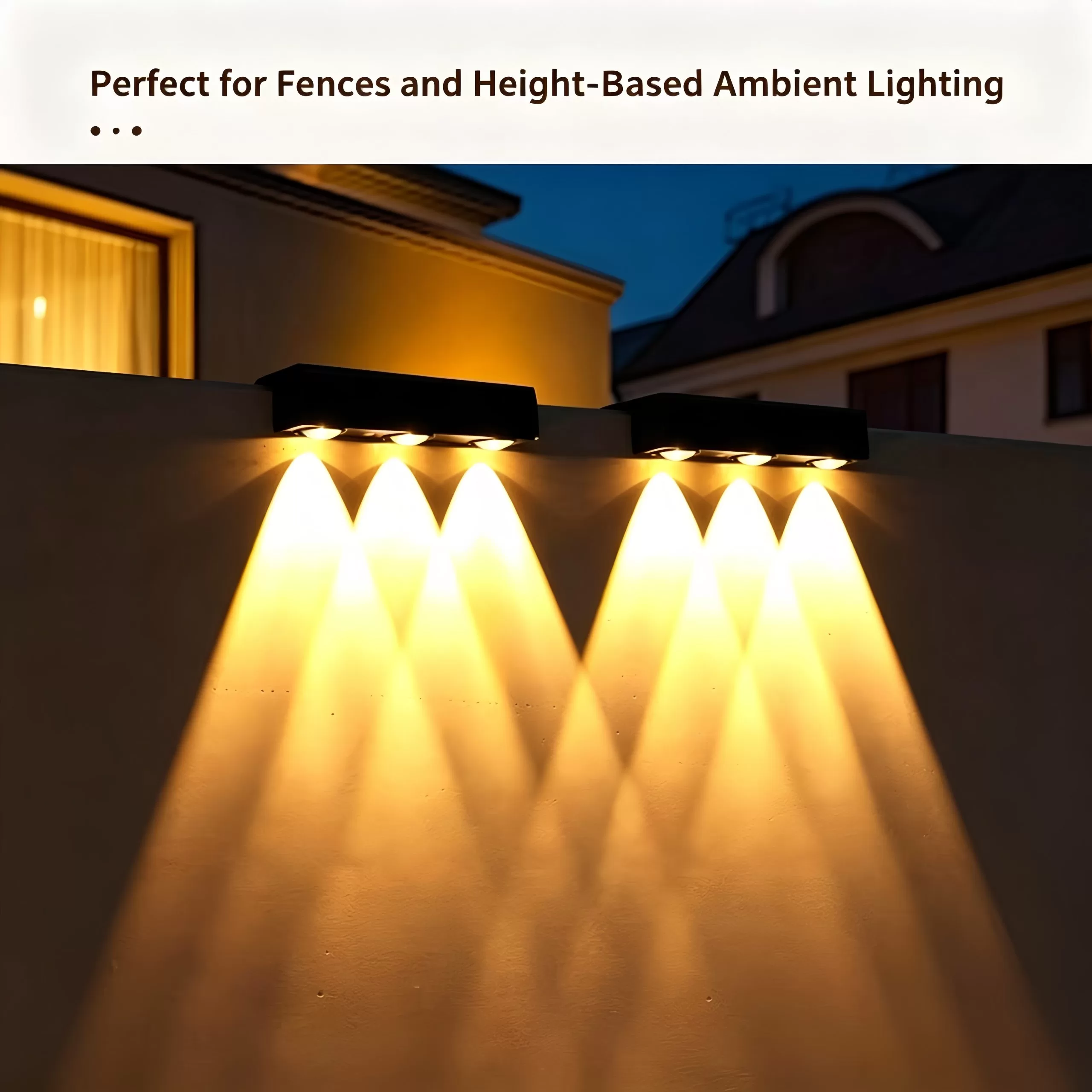
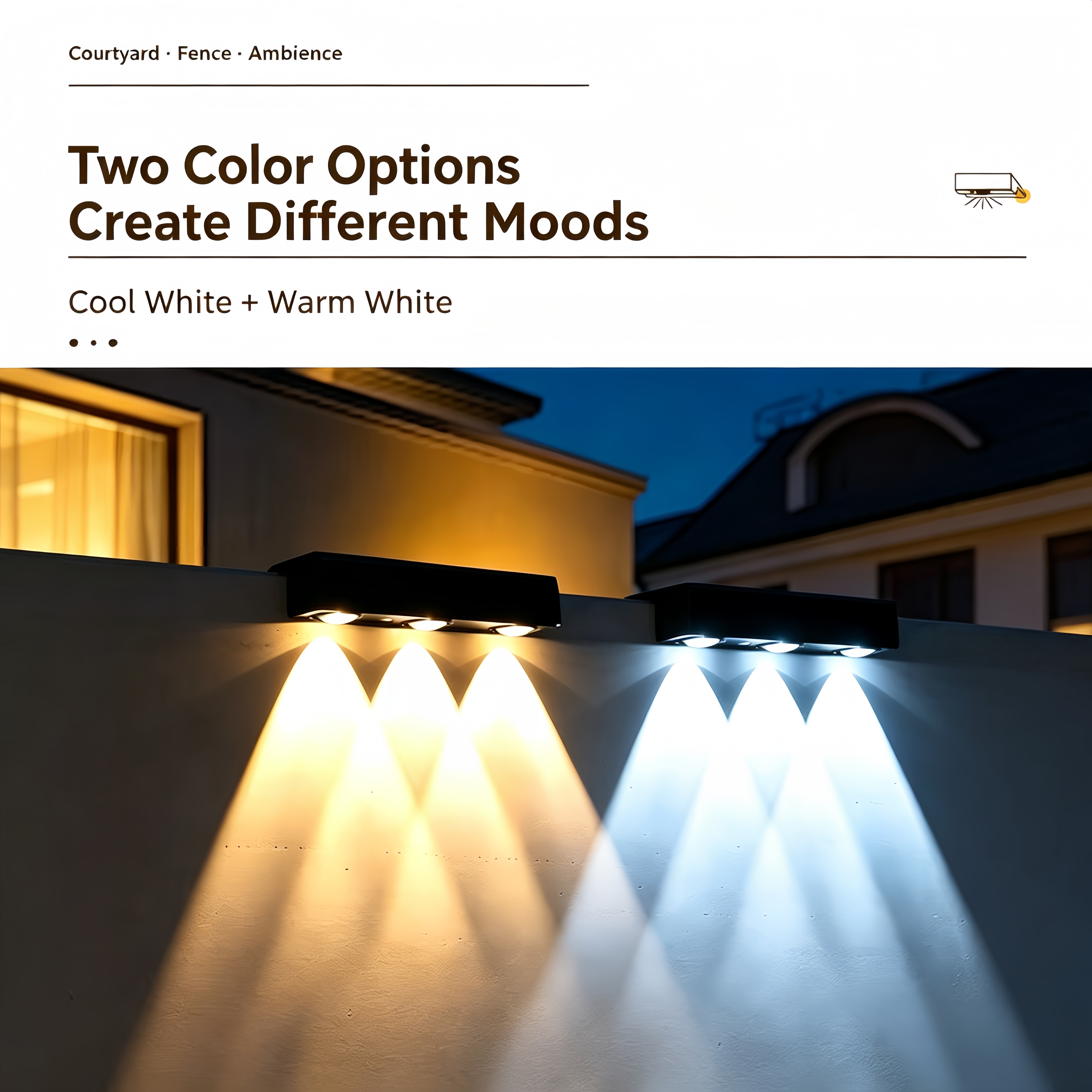
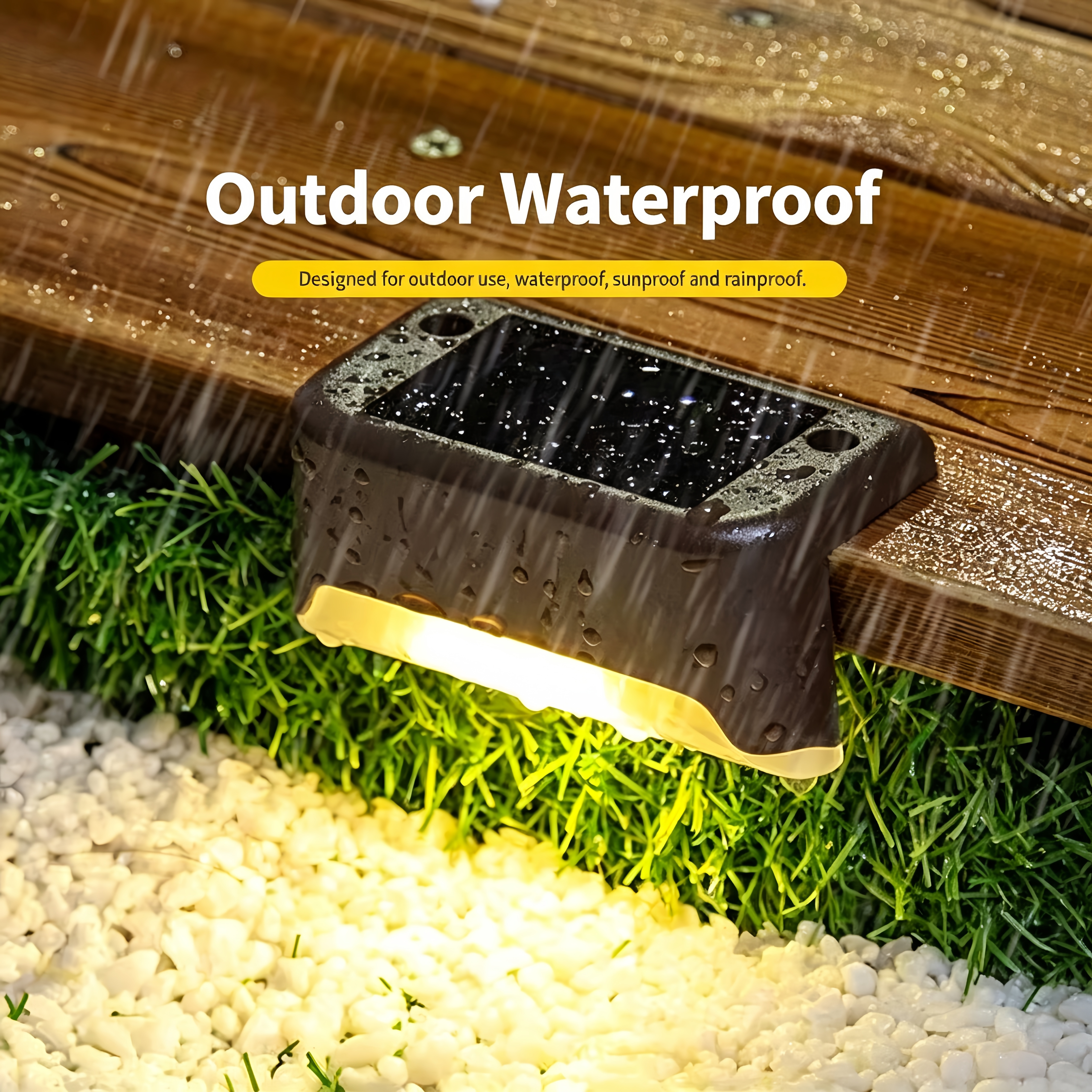
solar fence wall

Renting your Home but still want Smart technology? A wireless Smart home setup uses battery-powered and solar devices that require no permanent wiring, no electrician, and no modifications to your rental. You can take everything with you when you move.

Smart home devices for renters with no wiring required

Essential Wireless Smart Home Devices

The core devices for a renter-friendly setup include smart bulbs, battery-powered sensors, solar outdoor lights, and a wireless control panel. Each device connects via Wi-Fi or Bluetooth, so you only need your existing router. For lighting, a smart switch with adhesive mounting works without replacing your wall switch. Therefore, For security, the solar video doorbell is fully wire-free and charges itself.

wireless smart home security camera with battery power for apartments

How to Build a Wireless Smart Home

Start with a hub like the Tuya ecosystem. Add smart bulbs in lamps you already own. Install battery-powered door and motion sensors with adhesive strips. For example, For outdoor lighting, use solar step lights and solar fence wall lights that need no wiring.

Everything runs on batteries or solar power. When your lease ends, simply peel off the adhesive mounts and take the devices with you. No holes, no wires, no permanent changes.

wireless smart home automation with solar outdoor lights and sensors

Best Wireless Smart Home Picks for Apartments

For apartment dwellers, focus on devices that do not require drilling. In addition, Smart bulbs screw into existing fixtures. Battery sensors stick to doors and windows. Solar lights mount with adhesive or screws on balconies. Moreover, The apartment smart home guide covers this in detail. For more information on smart home protocols like Wi-Fi, Zigbee and Matter, see our smart home protocols comparison. Or visit the U.S. Department of Energy for efficiency tips.

Conclusion: Your Wireless Smart Home

A wireless smart home is perfect for renters who want modern convenience without permanent changes. Furthermore, Start with a few bulbs, add sensors, and use solar lights outdoors. When you move, everything comes with you. No wiring, no hassle, no deposit deductions.

Related Articles

You Might Also Like
Frequently Asked Questions

Is Wireless Wiring Devices Renter worth buying?

Based on the breakdown in this article, Wireless Wiring Devices Renter offers a solid mix of features and value. If your main goal matches the key benefits described above, it is a practical choice for everyday use.

How do I choose the right wireless wiring devices renter for my needs?

Start with your core use case, then compare battery life, compatibility, and build quality as covered above. Choosing the right wireless wiring devices renter comes down to matching specs with how you actually use it.

Does wireless wiring devices renter require a companion app?

Most devices of this type pair with a free companion app for setup and firmware updates. A few advanced features may sit behind a paid plan, so check the official specs page before buying.
Posted on — Leave a comment

Smart Home Devices for Seniors: Easy Tech for Aging in Place

xl_detail_vxNwYdei

Technology should make life easier. not more complicated. Smart Home devices for seniors are designed with simplicity in mind: voice Control. automatic schedules. and no complex setup. These tools help older adults live independently and safely at home without learning complicated technology.

Smart home devices for seniors with simple voice control interface

Best Smart Home Devices for Seniors

The most useful categories are automatic lighting. video doorbells. and smart pet feeders. Therefore, A smart switch lets seniors turn lights on and off without walking across the room. The solar video doorbell shows who is at the door without getting up from a chair.

For pet owners. the smart pet feeder ensures pets are fed on schedule even when memory lapses occur. For example, The Tuya control panel puts everything on one simple screen with large icons and clear labels.

elderly friendly smart home devices with large buttons and clear display

How to Set Up These Devices

Keep it simple. In addition, Choose devices that work with voice commands through Alexa or Google Assistant. Set up automatic schedules so lights turn on at sunset and off at bedtime. Moreover, Avoid devices that require frequent app interaction or complex menus. Install a smart home security system with door sensors and motion detectors. These alert family members if a door opens unexpectedly or if there is no movement for an unusual period. Furthermore, Automatic alerts can be sent to phones of family caregivers.

smart home devices for seniors with safety sensors and automatic alerts

Safety Benefits for Older Adults

Fall prevention is a top priority for aging in place. Motion-activated step lights illuminate stairs automatically at dusk. As a result, Video doorbells prevent risky trips to the door for unexpected visitors. Smart sensors detect water leaks. and smoke. sending alerts before disasters escalate.

For aging-in-place resources. visit the National Institute on Aging.

Conclusion: Embracing Smart Home Devices for Seniors

The right technology helps seniors stay independent longer. Start with lighting. and a video doorbell. then add sensors as needed. Importantly, Family members gain peace of mind knowing their loved ones are safer at home with smart home devices for seniors.

Related Articles

You Might Also Like
Frequently Asked Questions

Is Devices Seniors Tech Aging worth buying?

Based on the breakdown in this article, Devices Seniors Tech Aging offers a solid mix of features and value. If your main goal matches the key benefits described above, it is a practical choice for everyday use.

How do I choose the right devices seniors tech aging for my needs?

Start with your core use case, then compare battery life, compatibility, and build quality as covered above. Choosing the right devices seniors tech aging comes down to matching specs with how you actually use it.

Does devices seniors tech aging require a companion app?

Most devices of this type pair with a free companion app for setup and firmware updates. A few advanced features may sit behind a paid plan, so check the official specs page before buying.
Posted on — Leave a comment

Smart Home Security Guide: 7 Essential Devices for 2026

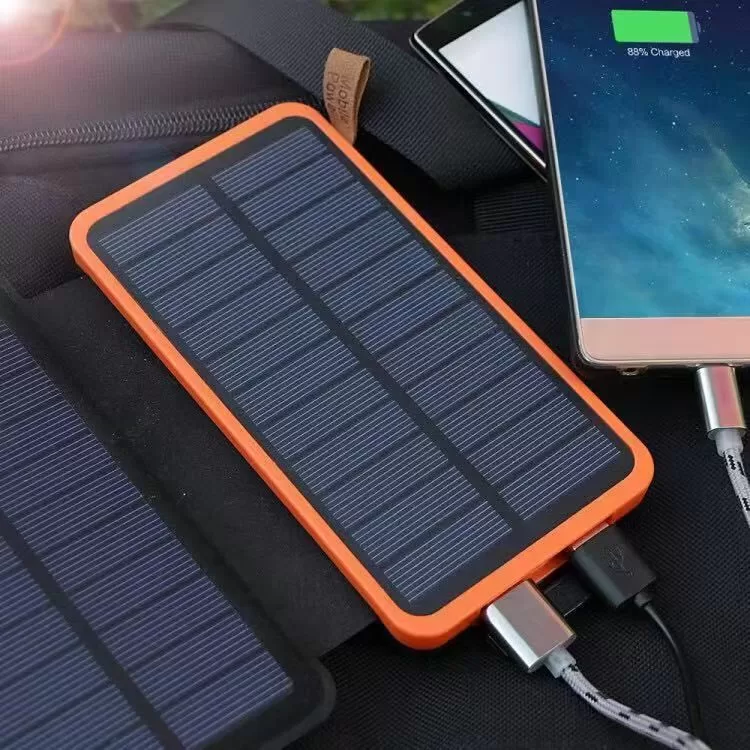
Foldable Solar Power Bank 20000mAh Waterproof Outdoor Charger ... - view 5

Why Smart Home Security Matters More Than Ever

However, In 2026, home security has evolved dramatically. With package theft, unauthorized visitors, and remote monitoring needs on the rise, Smart home security devices have become essential for every household. Whether you live in an apartment, villa, or run a business, these devices will transform how you protect your property.

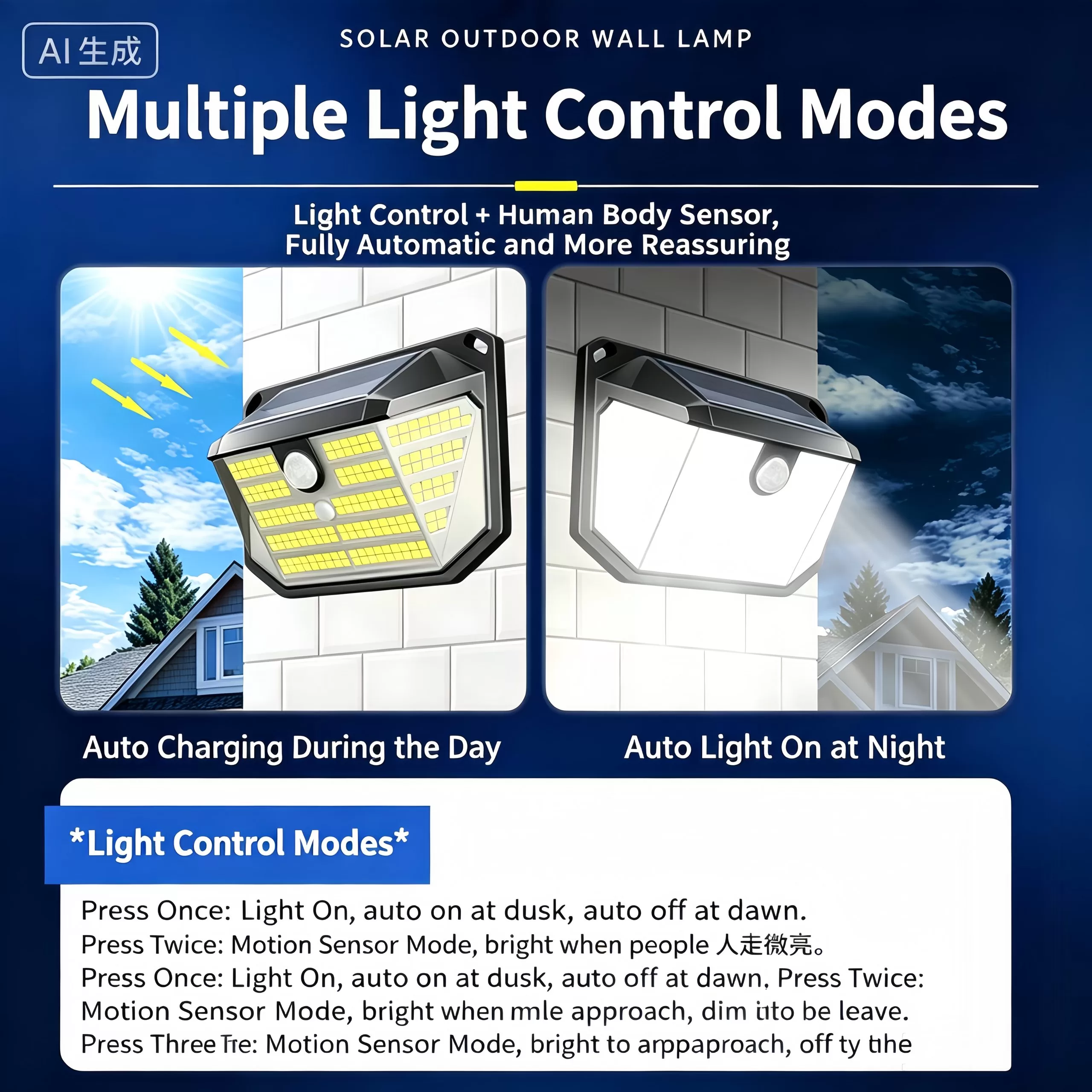
motion sensor lights

Consumer Reports security guide

>>

Smart home security camera system monitoring

7 Essential Smart Home Security Devices to Protect Your Home

1. Therefore, Video Door Phone Intercom System

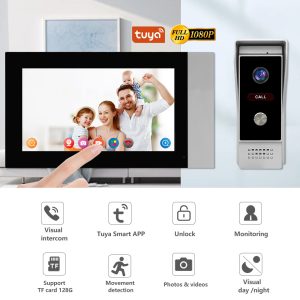
Therefore, A 2-wire video door phone intercom is the foundation of any smart security setup. With a 7-inch IPS touchscreen monitor and 1080P HD camera, you can see, speak to, and unlock the door for visitors — all from inside your home or remotely via smartphone.

  • See who’s at your door before opening it
  • Two-way audio communication
  • Remote door unlock via mobile APP
  • IP65 waterproof for outdoor durability
  • Night vision for 24/7 protection

2. Smart Door/Window Sensors

Moreover, These small but powerful sensors alert you the moment a door or window is opened unexpectedly. For example, Place them on every entry point for complete perimeter security. When triggered, you receive an instant push notification on your phone. Smart WiFi Pet Feeder: Automated Pet Care with APP Control Smart Home Market Trends 2026: What Distributors Must Know About Modular Security, Voice Control and Energy-Saving Devices

3. Motion Detection Cameras

In addition, Smart security cameras with PIR motion detection go beyond passive recording. In addition, They actively monitor your property and send real-time alerts when movement is detected. Look for models with 1080P or 4K resolution and night vision capability. Smart Home Wholesale FAQ: 15 Questions Every Buyer Asks Before Ordering in Bulk

4. Smart Locks

For example, Replace your traditional key with a smart door lock that supports fingerprint, PIN code, RFID card and APP control. Moreover, Perfect for families — no more hiding spare keys under the mat. Integration with Tuya Smart ecosystem allows seamless automation.

5. Smoke and Gas Leak Detectors

However, Security isn’t just about intruders. Smart smoke alarms and gas leak detectors protect your family from invisible threats. Furthermore, These devices send instant alerts to your phone, even when you’re away from home.

6. Smart LED Lighting

Automated lighting is one of the most effective burglary deterrents. Program your smart LED lights to turn on and off at different times when you’re away, making your home appear occupied. As a result, Motion-activated exterior lights also discourage unwanted visitors.

7. Water Leak Sensors

Often overlooked but critically important. Water leak sensors placed near washing machines, water heaters, and under sinks can save you thousands in water damage repairs. They detect leaks early and alert you immediately.

Building Your Smart Security Ecosystem

The key to effective smart home security is integration. Importantly, All these devices work best when connected through a single platform like Tuya Smart. This allows you to create automations such as:

  • When motion is detected → turn on lights + start recording
  • When door sensor triggers → send notification + lock all doors
  • When smoke detector triggers → cut power + alert emergency contacts

Where to Start?

Begin with a video door phone intercom system — it’s the most impactful single upgrade you can make. Then expand your ecosystem gradually with sensors, cameras, and smart locks. Notably, Every device you add strengthens your security net.

Ready to upgrade your home security? Visit our store at odmhome.com or contact us via WhatsApp: +86 176 6666 9273.

Related Articles

You Might Also Like
Frequently Asked Questions

Is Security Devices worth buying?

Based on the breakdown in this article, Security Devices offers a solid mix of features and value. If your main goal matches the key benefits described above, it is a practical choice for everyday use.

How do I choose the right security devices for my needs?

Start with your core use case, then compare battery life, compatibility, and build quality as covered above. Choosing the right security devices comes down to matching specs with how you actually use it.

Does security devices require a companion app?

Most devices of this type pair with a free companion app for setup and firmware updates. A few advanced features may sit behind a paid plan, so check the official specs page before buying.
Posted on — Leave a comment

Smart Home Devices for Apartments: What Works Without Drilling or Rewiring

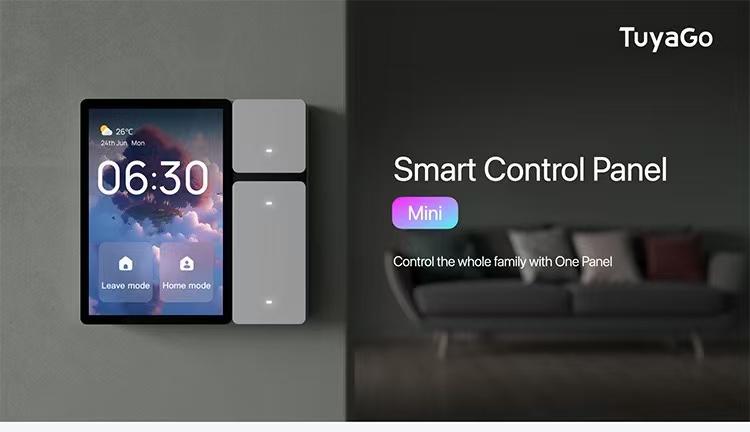
Compact 4-inch smart home control panel for apartments

However, Quick answer: In a rental you can install Smart plugs, bulbs, sensors on adhesive pads, Window Cameras, battery Video doorbells, a compact Control Panel and motorised curtain retrofits — all without a drill. The three things that will cause problems with a landlord are replacing wired switches, drilling into tile or exterior walls, and anything that alters the door lock. Everything else is reversible.

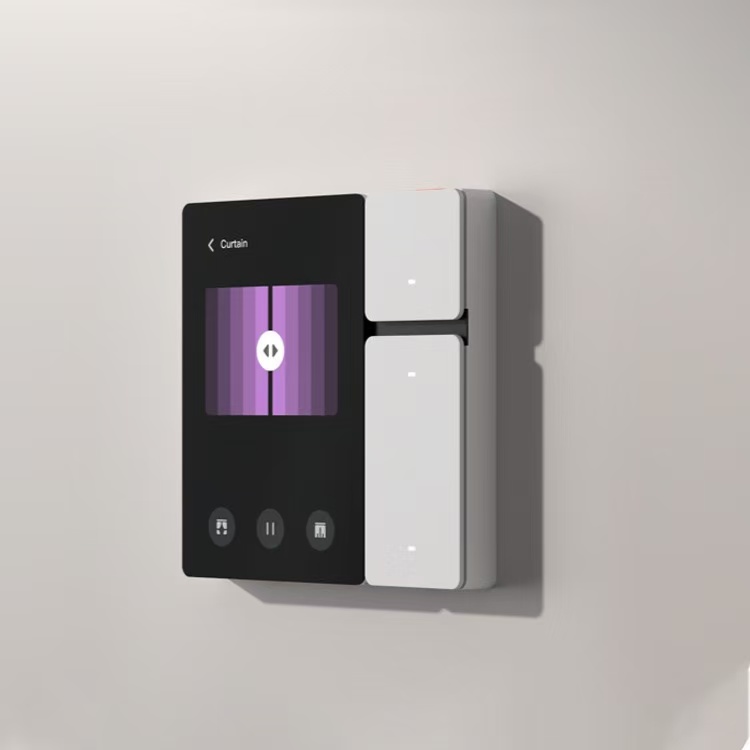
Compact 4-inch smart home control panel for apartments
A small control panel gives an apartment a single point of control without touching the wiring.
Why Apartments Need a Different Approach

Therefore, Most smart home advice assumes you own the place. Therefore, It suggests replacing switch plates, running cable to the door and mounting cameras under the eaves — none of which is available to a renter. What a renter needs is different in three specific ways: Smart Home Automation Guide 2026: 7 Practical Scenes That Save Time, Money and Energy

  • Everything must be reversible. The deposit depends on it.
  • Everything must travel. The next flat should take the same kit.
  • Installation should take minutes, not an afternoon. Nobody wants to patch and repaint on a twelve-month tenancy.

Moreover, Fortunately, the products that meet all three criteria now cover almost every category worth having.
What You Can Install With No Tools At All

Smart plugs

In addition, The simplest entry point. Plug one in, plug a lamp or a fan into it, and you have scheduling and remote control. For example, They also double as energy monitors on many models. Nothing is permanently changed, and they move house in a box.

Smart bulbs

For example, Screw into existing fittings. Dimmable and colour-changing options need no electrician. In addition, The one caveat is the wall switch: if somebody turns the switch off, the bulb loses power and becomes dumb — worth explaining to everyone in the flat. Smart Home Market Trends 2026: What Distributors Must Know About Modular Security, Voice Control and Energy-Saving Devices

Adhesive-mounted sensors

Therefore, Door, window, motion and water-leak sensors all ship with double-sided pads. A door sensor on the front door tells you when someone comes in; a leak sensor under the kitchen sink is genuinely worth its price the first time it fires. Smart Home Wholesale FAQ: 15 Questions Every Buyer Asks Before Ordering in Bulk

Smart control panel mounted without drilling in a rental flat
Adhesive pads hold sensors securely and peel off without marking.
What Needs Adhesive, Suction or a Screw — But Nothing More

Window cameras

This is the category that solves apartment security. An outdoor camera means a ladder and a masonry drill; a window camera mounts to the inside of the glass with a suction or adhesive bracket and looks straight through at the street or courtyard.

  • Why it suits renting — no exterior fixings, uses the indoor power outlet and gets a far better Wi-Fi signal than anything outside a wall.
  • The one trade-off — reflections from interior lighting can wash out the picture at night. Moreover, Choose a window that faces a dark exterior and close the curtains behind the camera.

We went into the mounting options and night-performance tips in our window camera and rain sensor guide.

Battery or solar video doorbells

With adhesive mounting, these need nothing more than a clean door frame. If the entrance gets daylight, a solar-assisted unit removes the charging routine entirely. Our walkthrough of installing a video doorbell without existing wiring covers the four mounting approaches and which one suits which entrance.

Compact control panels

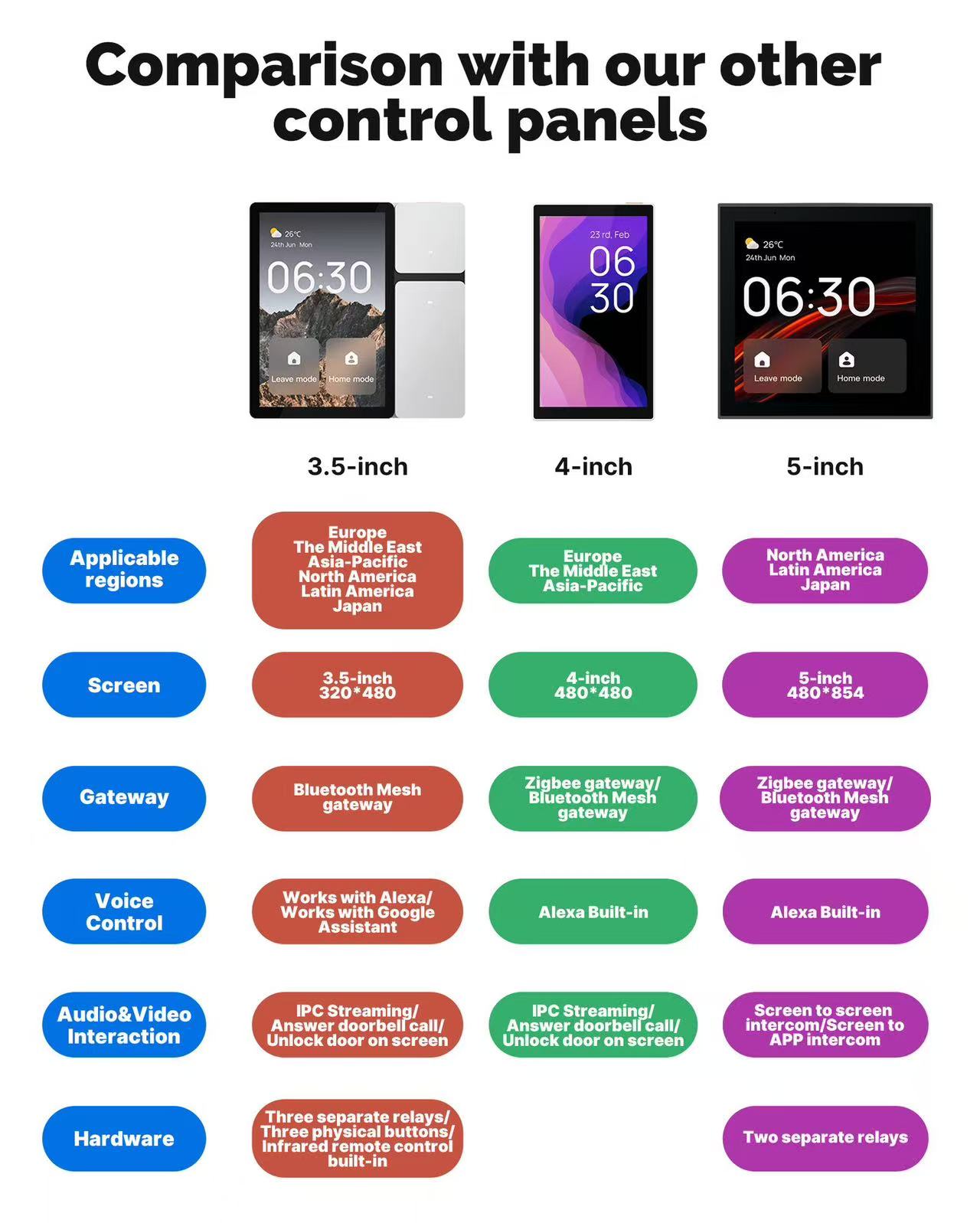
A 4-inch panel is the right size for a flat — big enough to be useful, small enough to sit on a shelf or mount with a single adhesive bracket. Furthermore, It becomes the one place where lights, plugs, scenes and the door camera all meet, which is what stops a smart home from turning into six apps.

If you are weighing up screen sizes, our Tuya control panel guide explains what a central screen is actually worth in a small property.

Apartment smart home setup with plug-in devices
Plug-in devices plus one small screen covers most of what a flat needs.

Curtain and blind retrofits

Motorised curtain tracks that clamp onto the existing rail, or tube motors that slide inside a roller blind, need no new wiring. They are the most underrated apartment upgrade: waking up to curtains that open themselves changes how a room feels, and the whole thing unclips on moving day.

The Three Things That Will Upset a Landlord

  1. Replacing wired switches or sockets. This alters the fixed electrical installation and, in many jurisdictions, legally requires a qualified electrician. Do not do it in a rental — use smart bulbs and plugs instead.
  2. Drilling into tile, stone or exterior walls. Impossible to repair invisibly. As a result, If you must fix something, use adhesive pads rated for the surface, or a tension-mounted pole.
  3. Changing the door lock. A smart lock on a rental door is usually a deposit dispute waiting to happen. A video doorbell answers the same question — who is at the door — without touching the lock cylinder.
Smart home control screen on a bedside table
A bedside panel makes the “good night” scene the most-used button in the flat.

A Sensible Order to Buy In

Buying everything at once is how people end up with a drawer of unused gadgets. This sequence builds capability with each step:

  1. Two or three smart plugs — learn whether scheduling actually changes your routine.
  2. A door sensor and a leak sensor — the first devices that generate genuinely useful notifications.
  3. A window camera or battery doorbell — covers the entry. This is the point most renters care about.
  4. A compact control panel — once you have six or more devices, one screen beats six apps.
  5. Curtain or blind motor — the upgrade that makes the flat feel finished.

Every item on that list is packable in an afternoon and works in the next property.

Renter friendly smart home devices on a shelf
All of it packs into one box on moving day.
Related guides
Frequently Asked Questions

Will adhesive strips damage paint when I remove them?

Quality removable pads such as command-style strips usually come away cleanly, but on old or flaking paint they can lift a layer. Importantly, Test a small area first, and warm the pad with a hairdryer before peeling slowly.

Can I take smart devices with me when I move?

Everything on this list, yes. The only exception is anything wired into the fixed installation —. This is exactly why this guide excludes it.

Do I need a hub in a small flat?

Not for Wi-Fi devices. A hub becomes worthwhile once you have several Zigbee sensors, or if you want a control panel that talks to all of them locally.

Is a video doorbell allowed in a rented flat?

Usually with adhesive mounting, but check the tenancy agreement regarding the door and communal areas, and angle the camera to cover your own doorway rather than a neighbour’s.

Build a Renter-Friendly Setup

Apartment living rules out drilling, not automation. Browse devices that install without tools, or tell us about the flat and we will suggest a starter kit that fits the space and the landlord’s rules.

Related Articles

You Might Also Like